Geodata Pixel User Manual
Introduction
Geodata Pixel is a solution for efficient management of geospatial data. With Geodata Pixel, you get a common place to upload, store and structure image data, raster data and point cloud data, making it easy to find and manage data based on time and place. The solution consists of a web application, a Python client, an API and integration with ArcGIS services.
The solution offers sharing mechanisms based on ArcGIS and provides opportunities for both internal and external sharing when needed. Safe storage of photos is secured and anonymization of sensitive data is included.
Access to the solution
The solution is web-based with the following structure: https://geodatapixel.no/{tenant}.
Where {tenant} is your organization's tenant ID. Contact your administrator for your specific tenant URL.
Access to the solution is user controlled with e-mail as username and a personal password.
User interface
When you log in to the solution, you will be taken to a landing page with an overview of everything you have access to. The interface consists of three main areas:
- Top navigation bar — Contains the search bar, a Filters button, view mode tabs (Dashboard / List / Map) and a Create button for new projects, data collections and map services. In the data viewers and on the administration pages, the bar shows where you are (home › project › data collection) and a search icon instead.
- Left sidebar — Contains the resource types you can search (Resources), the project tree (Context), Services (Map Services, Service users, Data Harvest Services), Analyses, and at the bottom Access management, API keys, Help and your own name, which opens Settings. Which entries you see depends on your access. The sidebar can be collapsed with the arrow button, and is hidden in the data viewers.
- Main content area — Displays the results in the selected view mode.
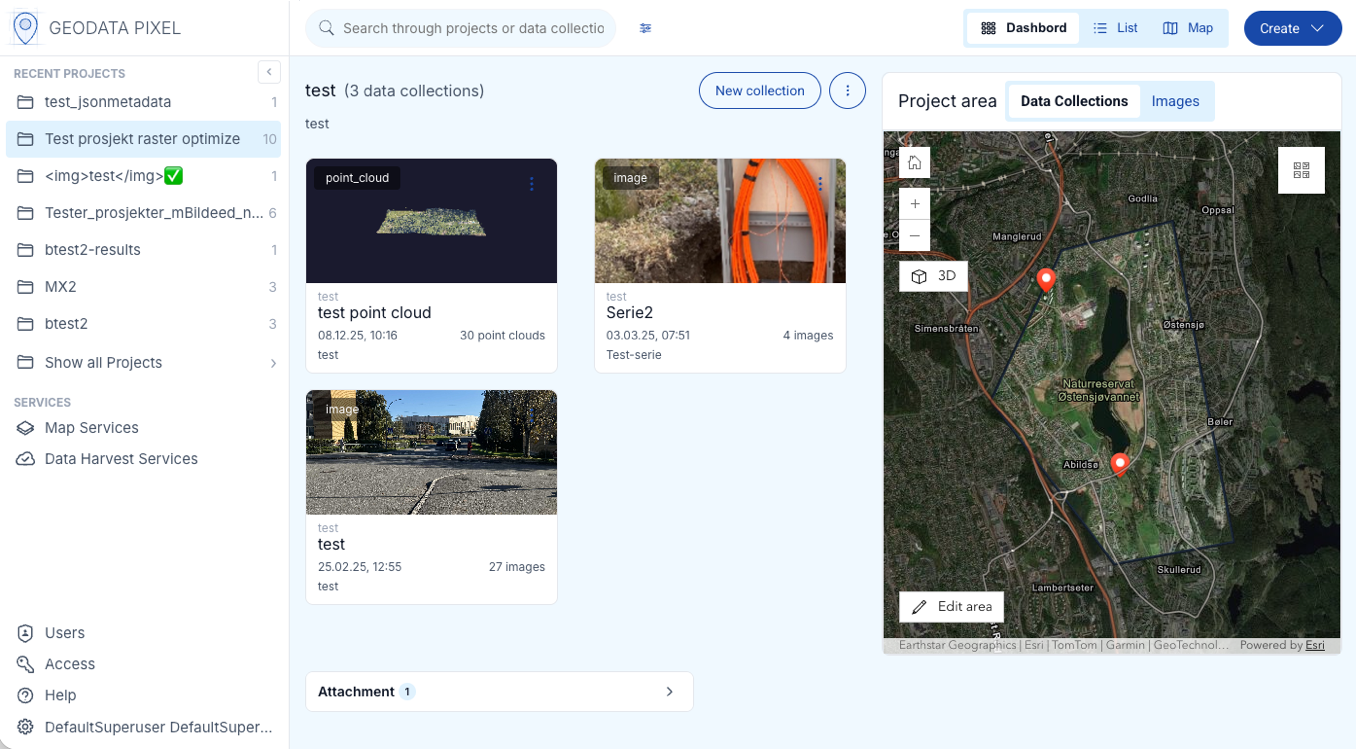
The landing page shows your Recent projects, followed by one section per resource type (Projects, Data Collections, Images, Rasters and Point Clouds) with Show all links, and a map of the results to the right.
View modes
You can switch between three view modes using the tabs in the top navigation bar:
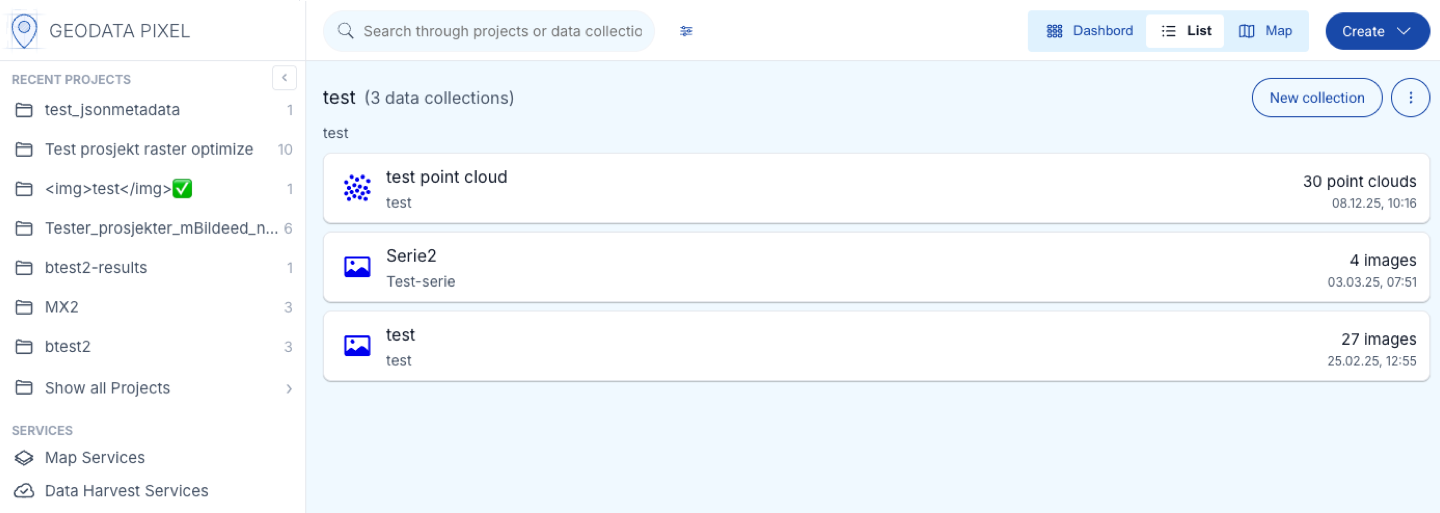
- Dashboard — Shows results as cards, grouped by resource type, with a map panel.
- List — Shows results as compact rows, with one tab per resource type.
- Map — Shows results on a full-width map. Images are shown as pins, rasters and point clouds as footprints, and projects as clustered points.
Search and filtering
Unified search
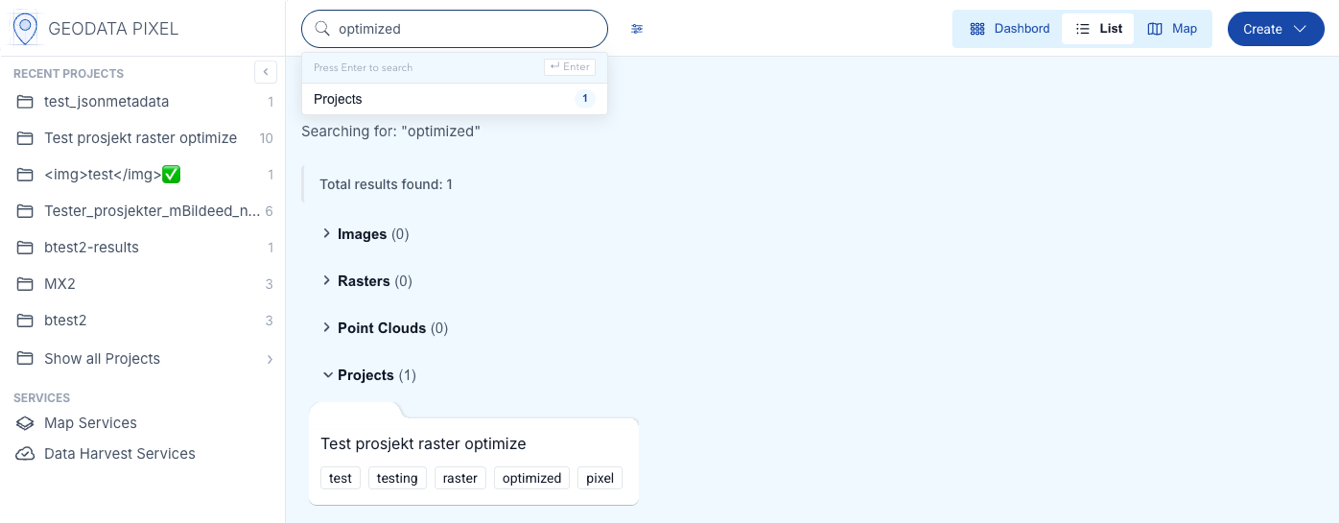
Pixel has one unified search that covers everything you have access to: projects, data collections, images, rasters and point clouds. The search bar in the top navigation bar is available on every page. As you type, suggestions appear with hit counts per category. Press Enter to run the search.
Scopes and context
The Resources section of the side menu controls what you search in. Choose All to search everything, or narrow the search to one of the resource types such as Data Collections, Images, Rasters or Point Clouds. Each entry shows a live hit count for the current search.
The Context section shows the project tree. Click a project or data collection to limit the search to it, and Show all Projects to see all projects. In a project, the project header is shown above the results; click ‹ All projects to go back to searching everything. In a data collection, a banner shows what you are searching within, and Clear context takes you back.
Filtering
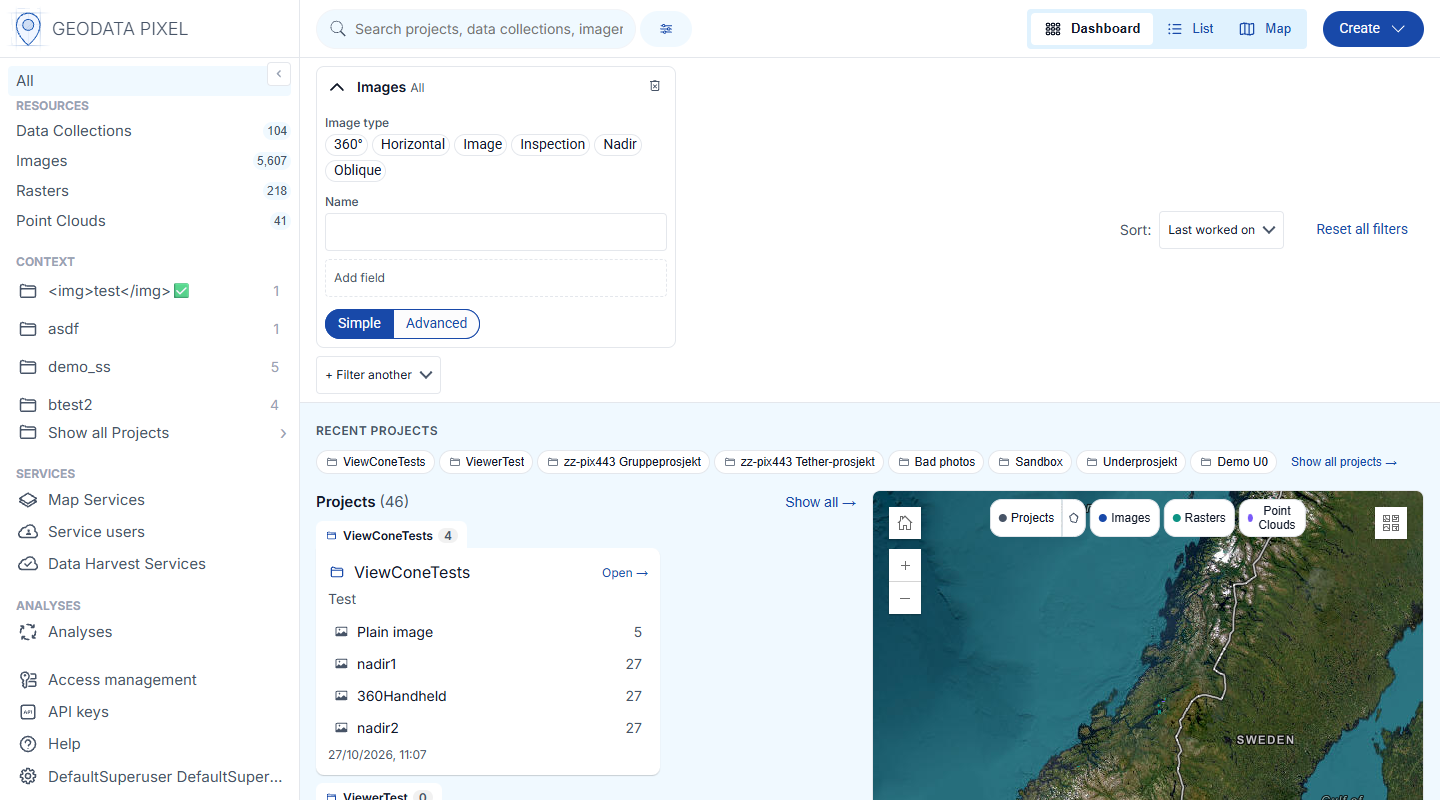
Click the Filters button next to the search bar to show or hide the filter panel:
- Field filters: choose a resource type in + Filter another resource and filter on its fields, such as image type, name, tags, capture date and JSON metadata. Click Add field to filter on more fields.
- Simple and Advanced mode: Advanced supports groups with AND/OR logic and operators such as contains, greater than and is empty.
- Area filter: click Limit area on the results map and draw a polygon to only get results within a geographic area. Use Edit area or Redraw to change it. In the List view, the area is set in the Search area panel.
Click Reset all filters to clear all active filters.
Map
The map shows images as pins and rasters and point clouds as footprints, with chips for toggling each resource layer and for showing all project areas. Click a pin or a footprint to open a popup with the name, date and a button that opens the item: Open image, Open raster or Open point cloud. When you zoom out, results are gathered into clustered points. Click a cluster to zoom in to it.
Sorting
Sort results by Last worked on, Changed, Date or Alphabetical. Last worked on (projects and data collections) puts the items you have opened most recently in this browser first, and orders the rest by when they were last changed. The dashboard uses the same sorting in each of its sections.
Shareable searches
The complete search state, including scope, context, filters, view and sorting, is stored in the page URL. Copy the address from the browser to share the exact same search with a colleague.
Projects
The data model in Pixel uses projects as the main organizational element. Projects contain data collections and can be nested with subprojects.
Project list
The Context section in the left sidebar shows a hierarchical list of the projects you have created or that have been shared with you, in alphabetical order. Click the folder icon to expand a project and show its subprojects and data collections. Click a project to open it.
Create new project
To create a new project, click the Create button in the top navigation bar and select New project. A dialog will appear where you can fill in the following information:
- Parent project — Leave empty for a top-level project, or select a project to create a subproject.
- Project name (required)
- Description (required)
- Tags — Add relevant tags to make the project searchable.
- Project area (required) — Draw a polygon on the map to define the project boundary. This polygon is used for validation when uploading data.
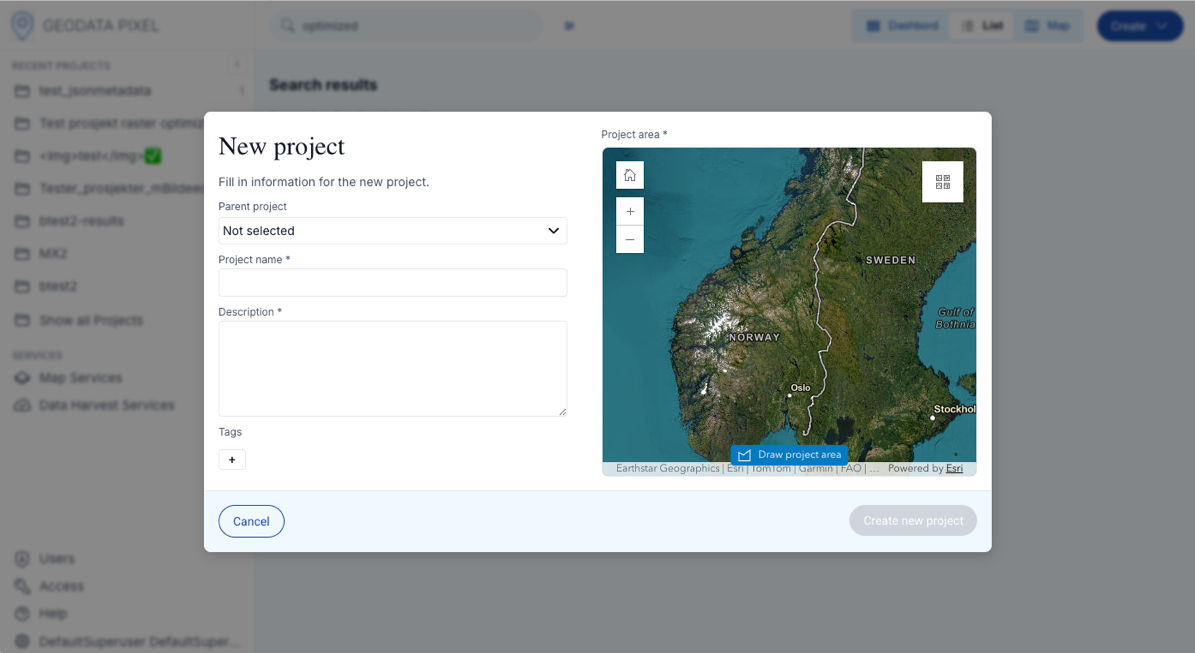
Drawing a project area
Click the Draw project area button to start drawing a polygon on the map. Use the mouse wheel to zoom and click-and-hold to pan. Click to add points to the polygon, and close it by clicking on the first point or double-clicking.
Click Edit area to adjust the polygon by dragging its handles, or Redraw project area to start over. Once you are satisfied with the project area and information, click Create new project.
Subproject
To further organize a project, you can create subprojects. A subproject has the same properties as a main project (name, description, tags and polygon).
To create a subproject, use the Create button in the top navigation bar and select New project. In the project dialog, select a Parent project from the project tree. The new project will be created as a subproject under the selected parent. Projects can only be nested to a limited depth.
Project menu
Open a project and click the three-dot menu next to the New collection button. Which options you see depends on your access to the project:
- Upload attachments — Attach files to the project. See Attachments.
- Edit — Opens the project dialog where you can change the name, description, tags and project area.
- Access — See and manage who has access to the project. See Access management.
- Move… — Move the project to another parent project.
- Delete project — Removes the project and all its contents. This action cannot be undone.
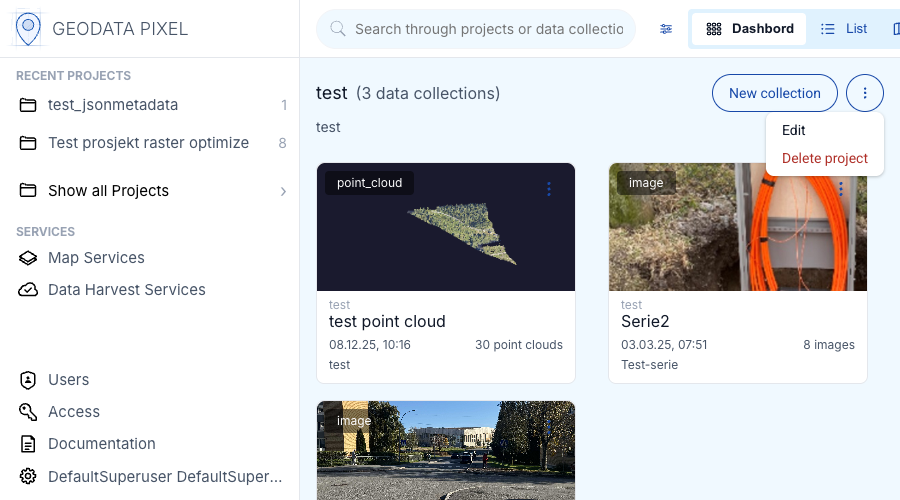
Each data collection card in the project also has a three-dot menu with Show details, Publish as map service, Move… and Delete collection.
Data collections
A data collection is a container for uploaded data within a project. Each data collection holds a single type of data. The following types are supported:
| Type | Description |
|---|---|
| Image | Standard photographs (JPEG, PNG, HEIC, WEBP) with GPS metadata |
| RGB | Orthophoto in RGB format (3-4 bands, uint8) |
| DTM | Digital Terrain Model (single band, float32/float64) |
| DSM | Digital Surface Model (single band, float32/float64) |
| Raster | Generic georeferenced raster data (GeoTIFF, JPEG, PNG, etc.) |
| Point Cloud | 3D point cloud data (LAS, LAZ, COPC) |
Data type separation
A data collection can only hold data of a single type.
Image sub-types
Image data collections support the following image types: Generic image, Horizontal, Oblique, Nadir, 360° panorama and Inspection. The image type is set per image during upload or in the image viewer. See Image types for details.
Create data collection
To create a new data collection:
- Click the Create button in the top navigation bar and select New collection, or click New collection in a project.
- Fill in the required information:
- Location (required) — Select the parent project from the project tree. You can also create a new project here.
- Name (required)
- Description (required)
- Tags
- Under Choose data type, select the type of data.
- Click Create to create the data collection. You can also add files to upload right away.
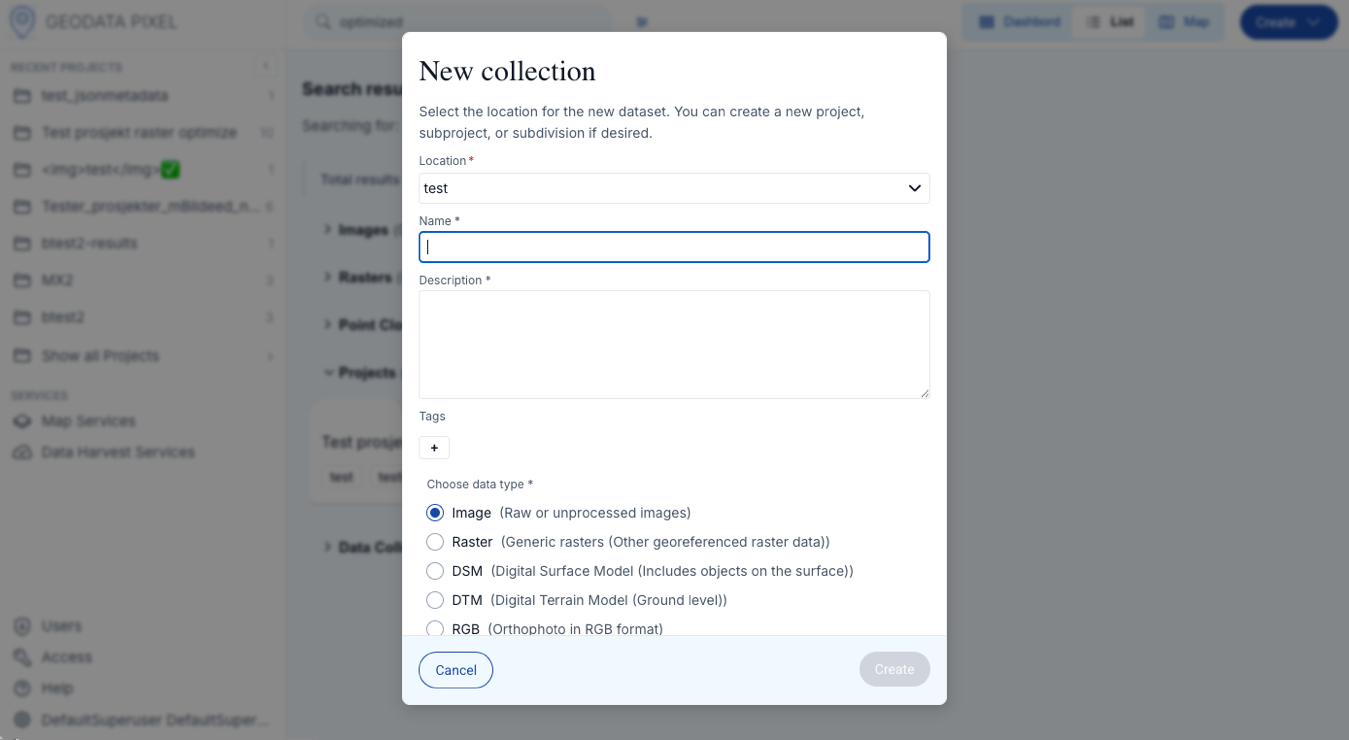
Raster data collections
When creating a raster data collection (Raster, RGB, DTM or DSM), you will be asked to configure rules for the raster data. These rules ensure consistency in the uploaded data:
- Spatial reference ID — The expected coordinate system (EPSG code). Optional for all types.
- Data type — The expected data type (uint8, int16, float32, float64, etc.). Optional for generic Raster. Must be uint8 for RGB, float32 or float64 for DTM/DSM.
- Cell size — The expected pixel size (X and Y) in coordinate system units. Optional for all types.
- Format — The expected file format, for example GTiff, JPEG or PNG. Optional for generic Raster. Must be GTiff for DTM/DSM, GTiff or JPEG for RGB.
- Number of bands — The expected number of bands. Optional for generic Raster. Must be 1 for DTM/DSM, 3 or 4 for RGB.
If specified, all rasters uploaded to the data collection must match these rules.
Technical details
For more technical details see the Python Pixel Client Documentation
Image data collections
No additional configuration is needed. You can start uploading images directly after creating the data collection.
Point cloud data collections
No additional configuration is needed. After upload, non-COPC files are optimized to COPC format.
Upload data
All data types share the same upload flow. To upload data to a data collection:
- Open the data collection, click the three-dot menu next to its name and select Upload. You can also add files directly when creating a new data collection.
- Drag and drop files into the upload area, or click choose files from this computer to browse.
- The application validates files automatically (see below).
- Click Upload to start uploading.
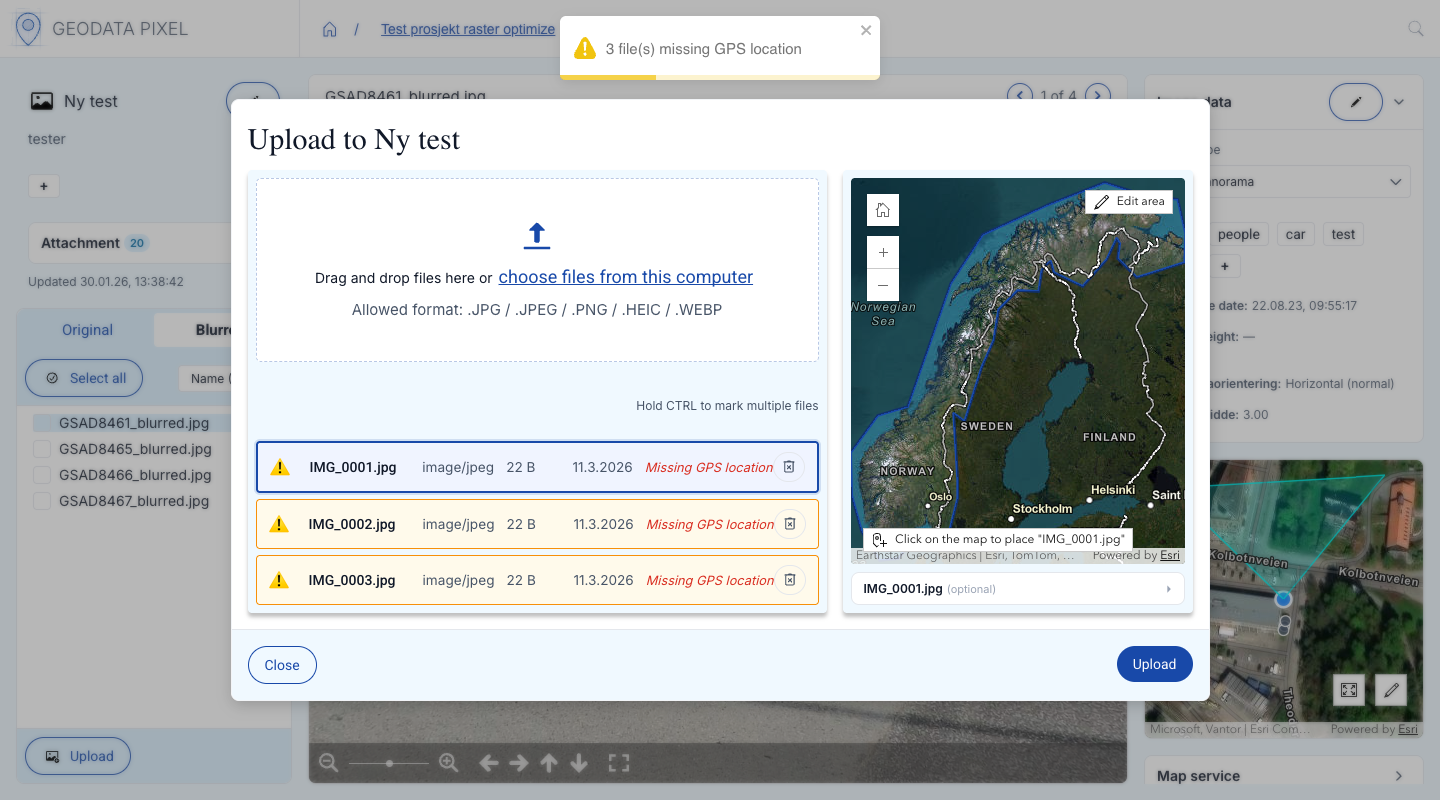
The upload runs in the background, so you can close the dialog and continue working. Toast notifications tell you when the upload starts and when the files have been transferred.
After the transfer, the server validates and processes each file. Until it is done, the file shows a status such as Validating... or Processing... in the file list. A transferred file is not finished until this step has passed.
If validation or processing fails, the file stays in the file list marked Validation failed or Processing failed, together with the reason from the server. A typical reason is a raster that does not match the rules of the data collection, for example the wrong format. Fix the file and upload it again, then click Dismiss to remove the row from the list.
Project area required
You can only upload to a project that has a valid project area.
Validation
When files are added, the application validates them automatically. For images, the map next to the file list shows the project area and where each image was taken. Files with a warning are marked in the list with the reason, for example Outside the project area.
- GPS location — Images without GPS metadata will receive a warning. You can manually set the location on the map.
- Project area — Images located outside the project boundary will be flagged.
- File names — Files with invalid file names must be renamed before you can upload.
- Duplicates — Files that are already uploaded to the data collection, or already added to the list, are skipped.
Manage metadata (images)
Before uploading images, you can review and edit metadata. Select files in the list (Ctrl/Cmd-click to select, Shift-click for a range, or Select all) and click Edit metadata. In the dialog you can:
- Set fields such as image type, camera heading and capture date, either manually or From EXIF.
- Add extra JSON metadata on the Extra JSON metadata tab.
- Click Apply to N selected files to apply the changes.
Images
Supported formats: JPG, JPEG, PNG, HEIC, WEBP.
Rasters
Supported formats: TIF, TIFF, GeoTIFF, JPEG, JPG, PNG, MRF and PDF for Raster and RGB, and TIF, TIFF, GeoTIFF and MRF for DTM and DSM.
Select all files that belong to a single raster dataset. This can be a single GeoTIFF file or multiple files including support files:
- *.tfw (GeoTIFF World File)
- *.pgw (PNG World File)
- *.jgw (JPEG World File)
- *.prj (Projection file)
- *.aux, *.aux.xml (Auxiliary files)
- *.ovr (Overviews file)
- *.xml (XML metadata file)
- *.idx, *.pjg (MRF index and data files)
Support files are automatically recognized and grouped with their main raster file.
Point clouds
Supported formats: LAS, LAZ, COPC.
After upload, non-COPC files are optimized to COPC format. Until a file is ready, the file list shows Awaiting processing.
Managing data
Once data has been uploaded to Geodata Pixel, you can perform several operations on projects, data collections and individual files.
Bulk operations
In the image viewer, raster viewer and point cloud viewer, you can select multiple files using the checkboxes in the file list. With files selected, buttons appear next to the select-all checkbox:
- Edit — Edit metadata and tags for all selected files at once.
- Download — Download all selected files as a single ZIP archive. For rasters, you can also download the optimized versions.
- Move… — Move the selected files to another data collection. In the point cloud viewer, files are moved one at a time.
- Optimize — Optimize the selected rasters (raster viewer only). See Optimize rasters.
- Delete — Delete all selected files.
When files are checked, the metadata panel still edits the file that is shown, not the checked files. A notice in the panel reminds you of this.
Download
Select the files you want to download using checkboxes and click the Download button. The ZIP archive is created in your browser, and the progress is shown while the files are downloaded.
Share a link to a file
In the image viewer, raster viewer and point cloud viewer, click the Copy link icon in the header of the metadata panel, next to the edit button. The link opens the data collection with that file selected, and you can send it to a colleague who has access to the data collection. For images, the link always points to the original image, also when you copy it from the Blurred tab.
Image viewer
When you open an image data collection, you enter the Image Viewer. The viewer has three panels:
- Left panel — The data collection name with a three-dot menu (Edit and Upload), and Show details for its description and tags. Below are tabs for Original and Blurred images and for Attachments, and the file list. You can select multiple images using checkboxes for bulk operations.
- Center panel — Large image display. Use Previous and Next or the arrow keys to browse between images. The toolbar has zoom, fit to screen, actual size, rotate and fullscreen.
- Right panel:
- Image data — View and edit image type, tags, capture date and EXIF data.
- Custom Metadata — View and edit custom JSON metadata.
- Location map — Shows where the image was taken (see below).
- Map service — Shows published map services that include this data collection, or lets you create one.
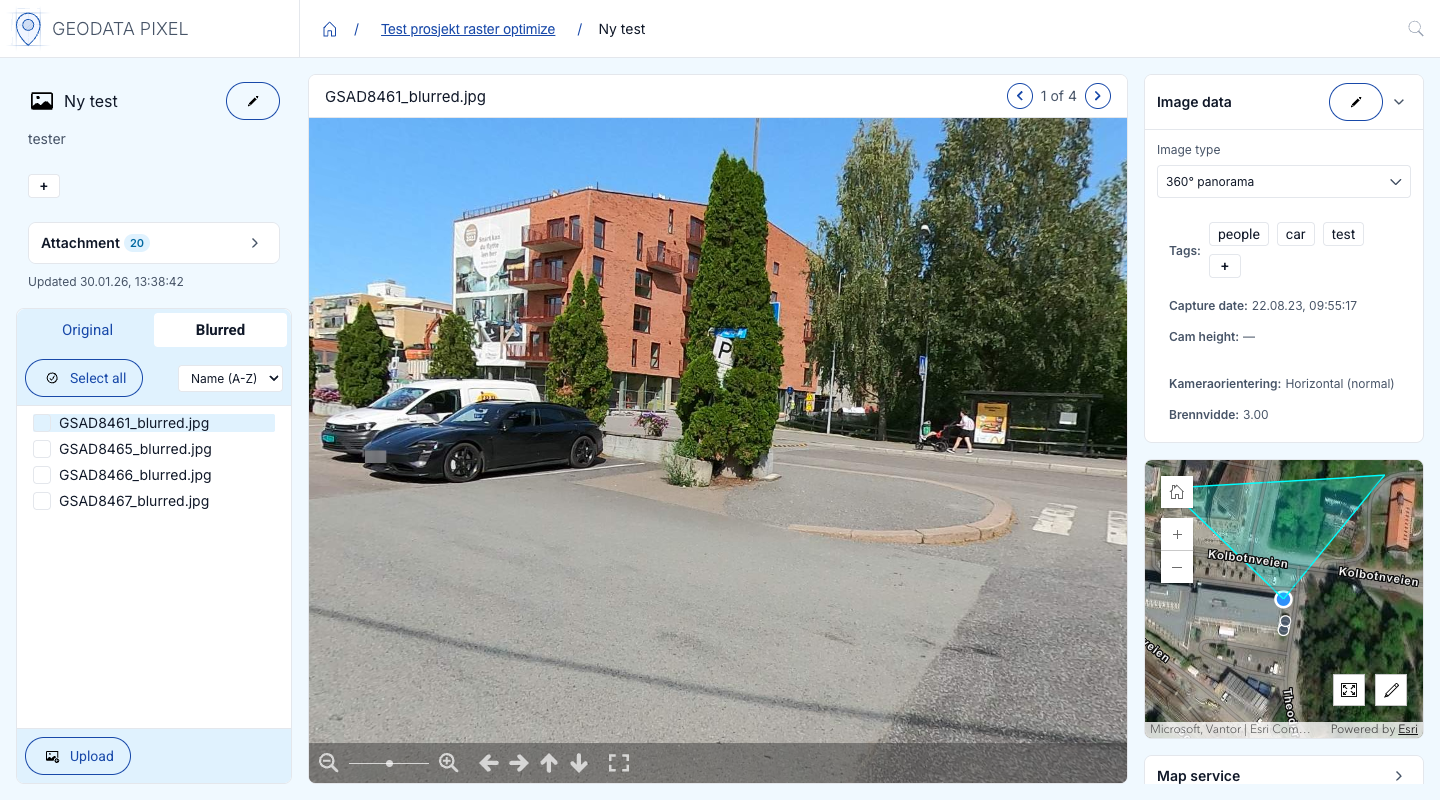
Location map and view cones
The location map shows the selected image and the other images in the data collection. When the image has the needed metadata (camera heading, pitch, roll, field of view and height), the map shows the area the image covers as a view cone or footprint. A dashed outline means that some of the values are estimated. For 360° panoramas, the map shows the covered area as a circle, and the cone follows the direction you look in the panorama viewer.
To change the location of an image, click the edit (pencil) icon on the map, click on the map to set the new position, and save.
Filter the file list
Above the file list you can filter images by file name and by tags. Start typing in Filter by tags... to get suggestions from the tags in the data collection, and select one or more tags to filter the list. Click Reset to clear the tag filter.
Tag filter and processed images
The tag filter works only on the Original tab, because tags are stored on the original images. Your selected tags are kept and applied again when you return to Original.
Image types
Each image in a data collection has an image type that determines how it is displayed in the viewer:
- Generic image — An image without a specific type.
- Horizontal — Standard landscape/portrait photographs.
- Oblique — Angled aerial photographs.
- Nadir — Straight-down aerial photographs.
- 360° panorama — Panoramic 360-degree images. These open in an interactive panorama viewer where you can look around in all directions.
- Inspection — Close-up inspection photographs.
The image type can be set during upload or edited later in the metadata panel.
EXIF metadata
The Image data panel shows the image type, tags, capture date and camera height, followed by metadata extracted from EXIF, such as:
- Camera orientation — Heading, pitch and roll.
- Field of view — Horizontal (HFOV) and vertical (VFOV) field of view.
- Focal length — Lens focal length.
Image viewer actions
- Download — Download selected images as a ZIP archive.
- Delete — Delete selected images (requires editor or admin permissions).
- Bulk edit — Select multiple images and edit metadata, tags or image type in bulk.
- Processed images — Use the tab to view processed variants of images:
- Original — The uploaded image as-is.
- Blurred — Anonymized version with sensitive content (license plates, faces) blurred out.
Point Cloud viewer
When you open a point cloud data collection, you enter the Point Cloud Viewer. The viewer has three panels:
- Left panel — File list with visibility toggles per file. You can show/hide individual files in the 3D view, and open a single file in Potree.
- Center panel — 3D point cloud renderer with interactive camera controls. The bottom toolbar shows the number of points and the elevation range, and has buttons for point info and fullscreen.
- Right panel:
- Point Info — Shown when you have picked a point.
- File Info — File information and properties.
- Custom Metadata — View and edit custom JSON metadata.
- Minimap — Geographic overview showing the loaded point clouds.
- Settings — Adjust color mode, point size and point budget.
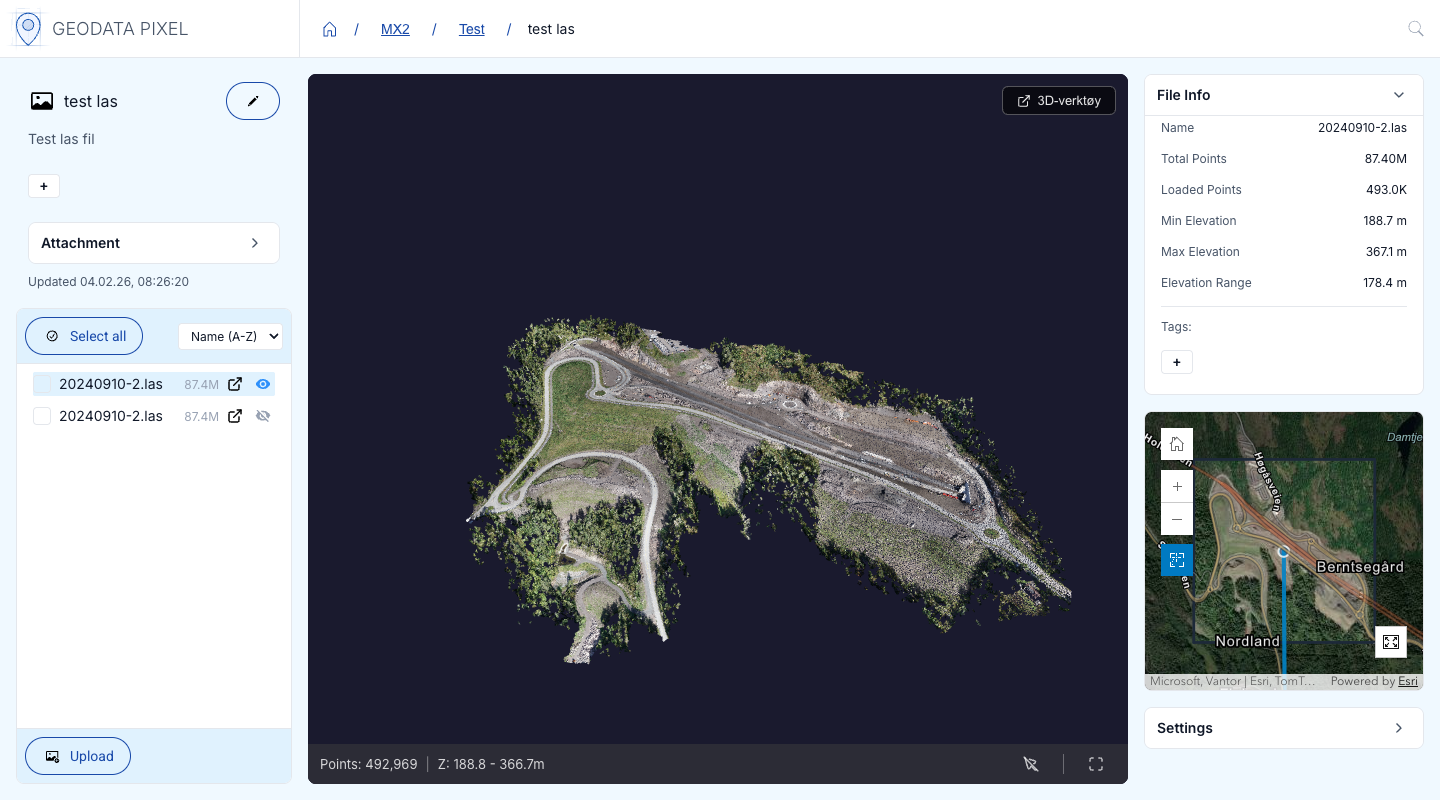
Color modes
In Settings, use Color Mode to switch between visualization modes:
- RGB — Display points with their original colors.
- Intensity — Color points by return intensity.
- Elevation — Color points by height.
- Classification — Color points by classification category (ground, vegetation, buildings, etc.). A legend shows the classes.
Point picking
Turn on point info with the button in the bottom toolbar of the 3D view, then click on a point to inspect it. The Point Info panel at the top of the right panel shows:
- Classification — The classification category of the point.
- Elevation — Height value, absolute and relative.
- Intensity — Return intensity value.
- Color — The color of the point.
- Position — Local X, Y and Z coordinates.
Controls
- Point Size — Adjust the visual size of individual points.
- Point Budget — Set the maximum number of points to render, distributed across all active files (higher values = more detail but slower performance).
- Fullscreen — Toggle fullscreen mode for the 3D view.
- 3D Tool — Open all files in the external Potree viewer for advanced visualization.
Minimap
The minimap in the right panel shows a geographic overview of the loaded point clouds. A camera indicator shows the current camera position and viewing direction in the 3D view. The file you hover in the file list is highlighted on the map. Use the auto-zoom button to make the map follow the camera.
Raster viewer
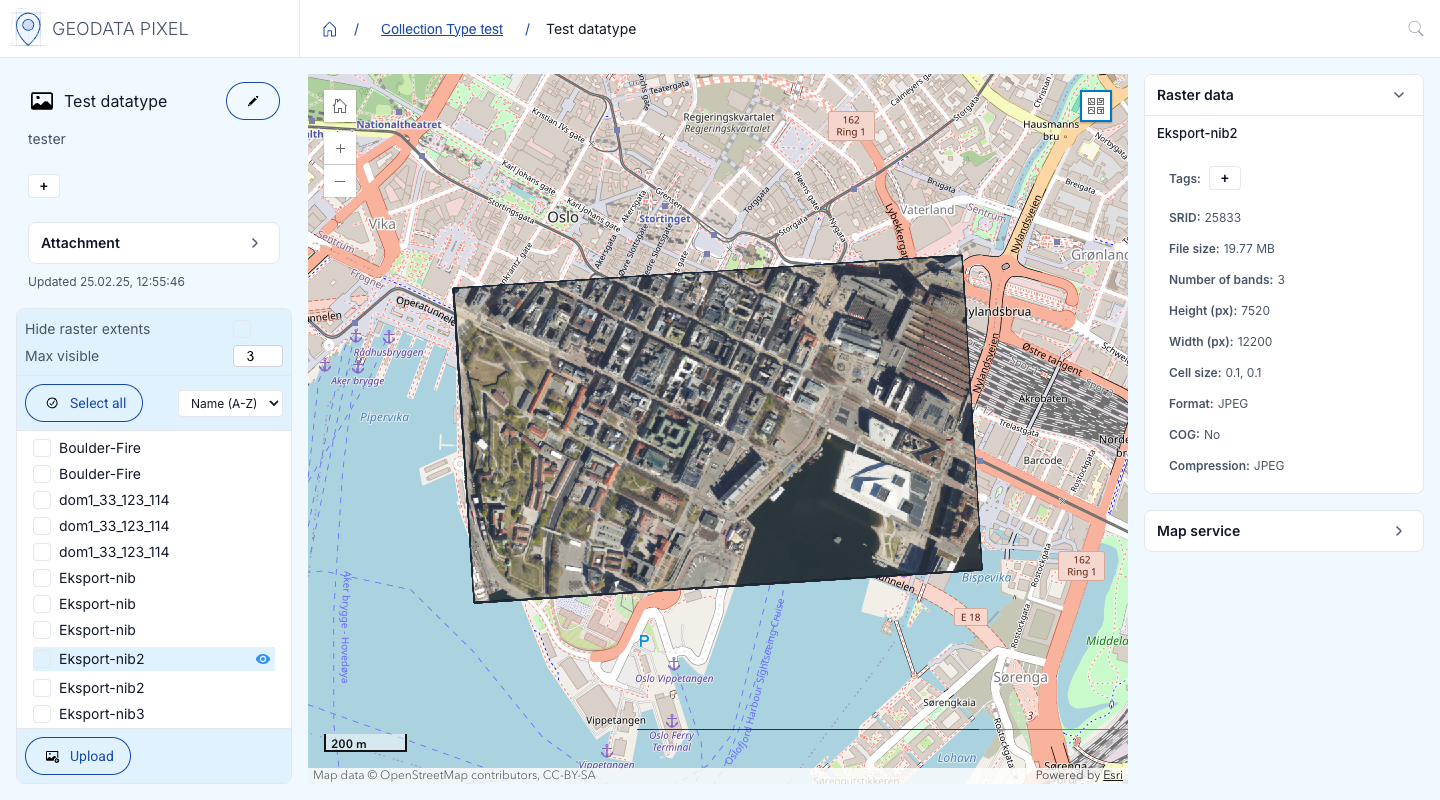
When you open a raster data collection, you enter the Raster Viewer. The viewer displays raster data as a map overlay.
- Left panel — File list showing uploaded rasters. Rasters that can be shown on the map have a visibility toggle (Show on map / Hide from map). Multiple rasters can be displayed simultaneously; set the maximum with Max visible in the three-dot menu.
- Center panel — Map display with the raster data overlaid. Raster extents are outlined on the map, making it easy to identify the coverage area of each file. They can be hidden with Hide raster extents.
- Right panel — Raster data, Custom Metadata and Map service.
If a raster has no capture date, the metadata panel shows Missing capture date. This matters if the raster is published in an image service, see Image service administration.
Rasters must be Cloud Optimized GeoTIFFs (COG) to be visualized in the viewer. You can either upload COG files directly or use the Optimize rasters feature to convert them.
Optimize rasters
Optimization of rasters requires optimized_raster plugin
See note about plugins in Pixel for more information.
When you have uploaded rasters to a raster data collection, you can optimize them to create Cloud Optimized GeoTIFFs (COG). This is required for:
- Visualizing rasters in the web viewer.
- Publishing raster data as an ArcGIS Image Service.
Optimization is available for RGB, DTM and DSM data collections.
To optimize rasters:
- Open the raster data collection in the Raster Viewer.
- Select one or more rasters using the checkboxes in the file list.
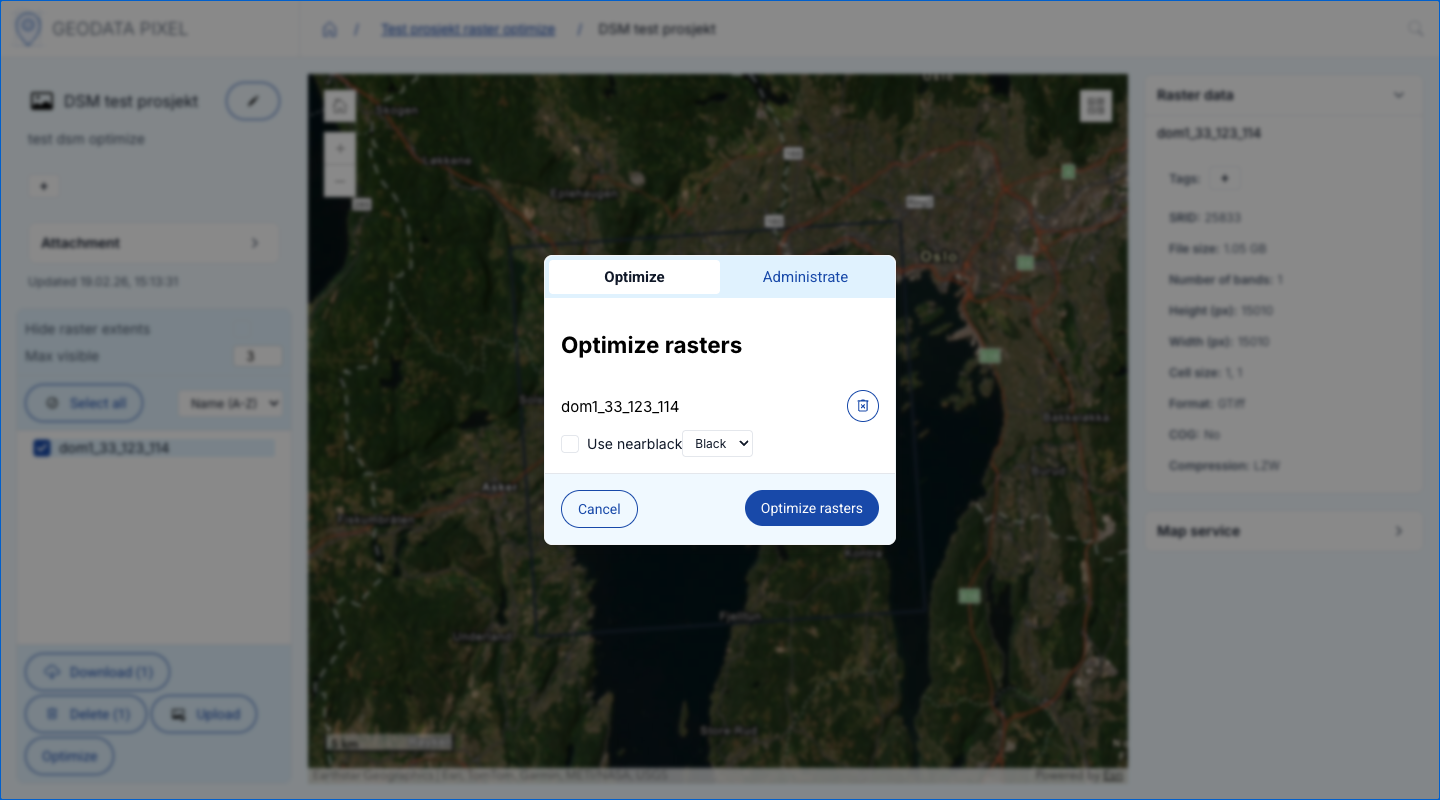
- Click the Optimize button next to the select-all checkbox. This opens the optimization dialog.
- The dialog has two tabs:
Optimize tab — Configure and start new optimization jobs (requires Editor or Admin permissions):
- Review the selected rasters. Rasters that already have an optimization job are left out.
- Enable Use nearblack to clean up border artifacts (see below).
- Select the nearblack color (Black or White).
- Click Optimize rasters to start. The jobs are created and run automatically.
Administrate tab — Monitor and manage optimization jobs for the selected rasters:
- Shows the optimization jobs grouped by status:
- Pending — Created but not yet running. Click Run to start it.
- Submitted — Queued for processing.
- In progress — Currently being processed.
- Completed — Successfully optimized. Click Download all to download all of them.
- Failed — The optimization failed. A Retry button appears.
- The status auto-refreshes every 15 seconds. You can also click Refresh manually.
- Click the download icon to download the optimized raster (COG).
- Click the trash icon to delete an optimization job.

Apply Nearblack
If your rasters are compressed (usually JPEG) and have 3 bands, they may have artifacts at the borders. The Nearblack option in the optimization dialog cleans up these artifacts by making near-black or near-white pixels in the background transparent. Choose the color (black or white) depending on the background pixel values of your rasters.
Code samples for optimizing rasters
Code samples for optimizing rasters can be found in the Python Client Documentation.
Tags
Geodata Pixel has a flexible tagging system for all elements. Tags can be added to projects, data collections, images, rasters and point clouds. Tags are searchable throughout the application and are available through the API.
Automatic tagging
When images are uploaded to an image data collection, automatic tagging is performed using machine learning. This identifies objects such as cars, boats and other items in the images. When uploading through the API, you can also specify custom tags automatically.
Manual tagging
All elements can be manually tagged. Projects and subprojects are tagged when creating or editing them. In the viewers, you can add tags to a data collection or a file with the + button. To remove tags from files, select them and use bulk edit.
Attachments
Geodata Pixel allows you to attach arbitrary files to projects and data collections. This is useful for storing additional information such as reports, documents or other relevant files.
- Project — Click Attachment in the project header to see the attachments (the button is shown when the project has attachments). To add attachments, select Upload attachments in the project's three-dot menu.
- Data collection — Open the Attachments tab in the file list of the data viewer.
Upload attachments
- Click Upload attachments. This opens the upload dialog.
- Drag and drop files into the drop zone, or click choose files from this computer to browse.
- Review the pending files — you can remove individual files before uploading.
- Click Upload attachments to upload all files.
Download, move and delete
Each attachment in the list shows a file icon, name and date. The following actions are available:
- Download — Download the file. Only available for completed attachments.
- Move… — Move the attachment to another project or data collection.
- Delete attachment — Remove the attachment. A confirmation dialog will appear. Requires Editor or Admin permissions.
Attachments that are still being processed are marked Pending. Use Show pending to show them in the list.
Analysis
Beta functionality
Analysis is currently released as a beta feature. The available analysis types and their options may change as the functionality matures.
Geodata Pixel can run analysis on your data. Open Analyses in the left sidebar. The entry is only shown when your organization has at least one analysis module enabled.
Analysis is built around three concepts:
- Analysis module – a type of analysis that can be run, for example Sitescan analysis (3D models, ortho and point clouds from image series) or ForestSens analysis (forestry analyses of images, orthophotos and point clouds). Each module defines the options it needs to be configured with and the parameters required for each run.
- Analysis – a configured instance of a module. An analysis is given a name and a configuration, and can be enabled or disabled.
- Task – a single run of an analysis. Each task is created with its own parameters and is then started with Run.
The Analyses page lists the analyses in your organization with their module, status and number of tasks. Analyses marked Managed by Geodata are set up and maintained by Geodata, and cannot be edited or deleted.
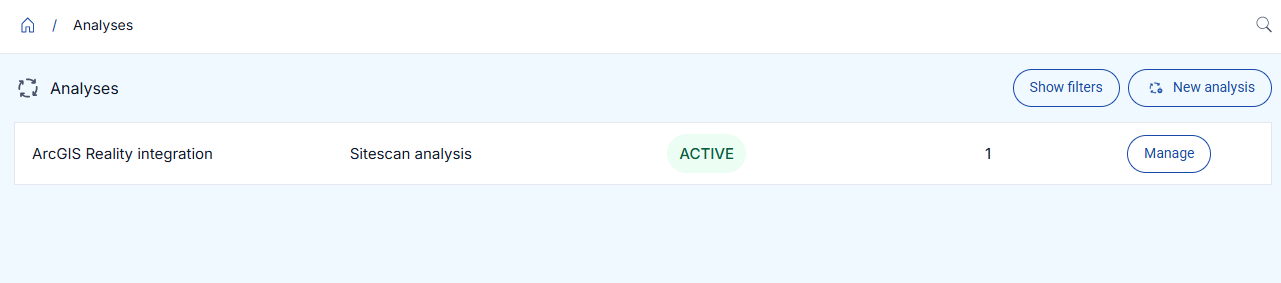
Create an analysis
- Click New analysis.
- Select the analysis type and click Next. Each card shows how many analyses of that type already exist. A type can be unavailable if your organization has reached the maximum number for it.
- Fill in Name, the Configuration for the selected module and the Status (Enabled or Disabled).
- Click Create.
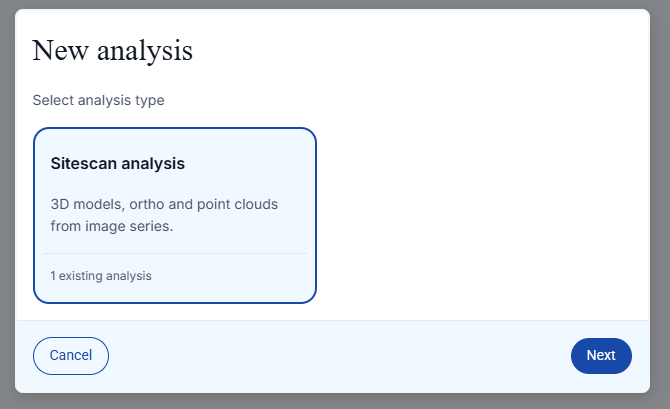
Some configuration fields are drop-down lists with options loaded from the third-party service, for example the Pipeline for ForestSens. If the options cannot be loaded, click Try again.
To change an analysis later, open it with Manage and click the edit (pencil) icon. You can change its name, configuration and status. The module cannot be changed after the analysis is created — create a new analysis if you need a different module. Click Delete analysis to delete it together with all its tasks.
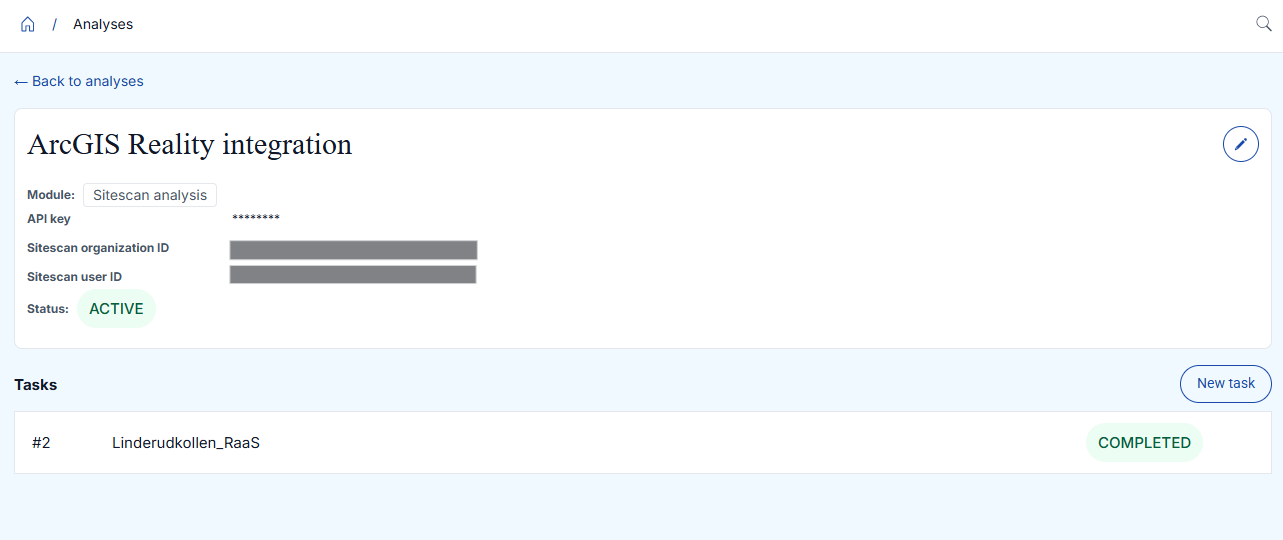
Run analysis tasks
- Click Manage on the analysis in the list.
- In the Tasks section, click New task.
- Give the task a name (optional), fill in the parameters for the run and click Create.
- Click the task in the list to open it, and click Run to start it.
The task page shows the parameters, the estimate, the results and the complete log, and an error message if the run failed.
Each task has a status that shows its progress:
| Status | Description |
|---|---|
| Ready | The task has been created and can be started. |
| Queued | The task has been started and is waiting to be processed. |
| Running | The task is currently being processed. |
| Pausing | The task is being paused. |
| Paused | The task is paused. |
| Completed | The task completed successfully. |
| Failed | The task failed during processing. |
| Revoked | The task was cancelled before it finished. |
Tasks you no longer need can be deleted with Delete on the task page.
Not all tasks can be deleted
Whether a task can be deleted is module-specific. Some analysis modules do not allow their tasks to be deleted.
Technical details
Analysis is also available through the Python client. For a programmatic walkthrough with code samples, see the Python Client Documentation.
Administration
The administration pages are found at the bottom of the left sidebar (Access management, API keys, Help and your own name, which opens Settings), and under Services (Map Services, Service users and Data Harvest Services). Which pages and buttons you see depends on your user type and the access you have been given.
User types
Every user has a user type that decides what they can do across the organization. What they can do inside a project is decided by the project role they are given (see Access management).
| User type | Description |
|---|---|
| Viewer | Sees only the projects they are given access to, directly or through a group. Can't create anything. |
| Creator | Can also create top-level projects, groups and API keys, and see the list of users. Gives no access to existing projects. |
| Superuser | Sees and changes everything in the organization, users and services included. Use only when needed. |
Access management
The Access management page gathers users, groups and project access in one place. It is available to Creators and Superusers. Only Superusers can create and edit users.
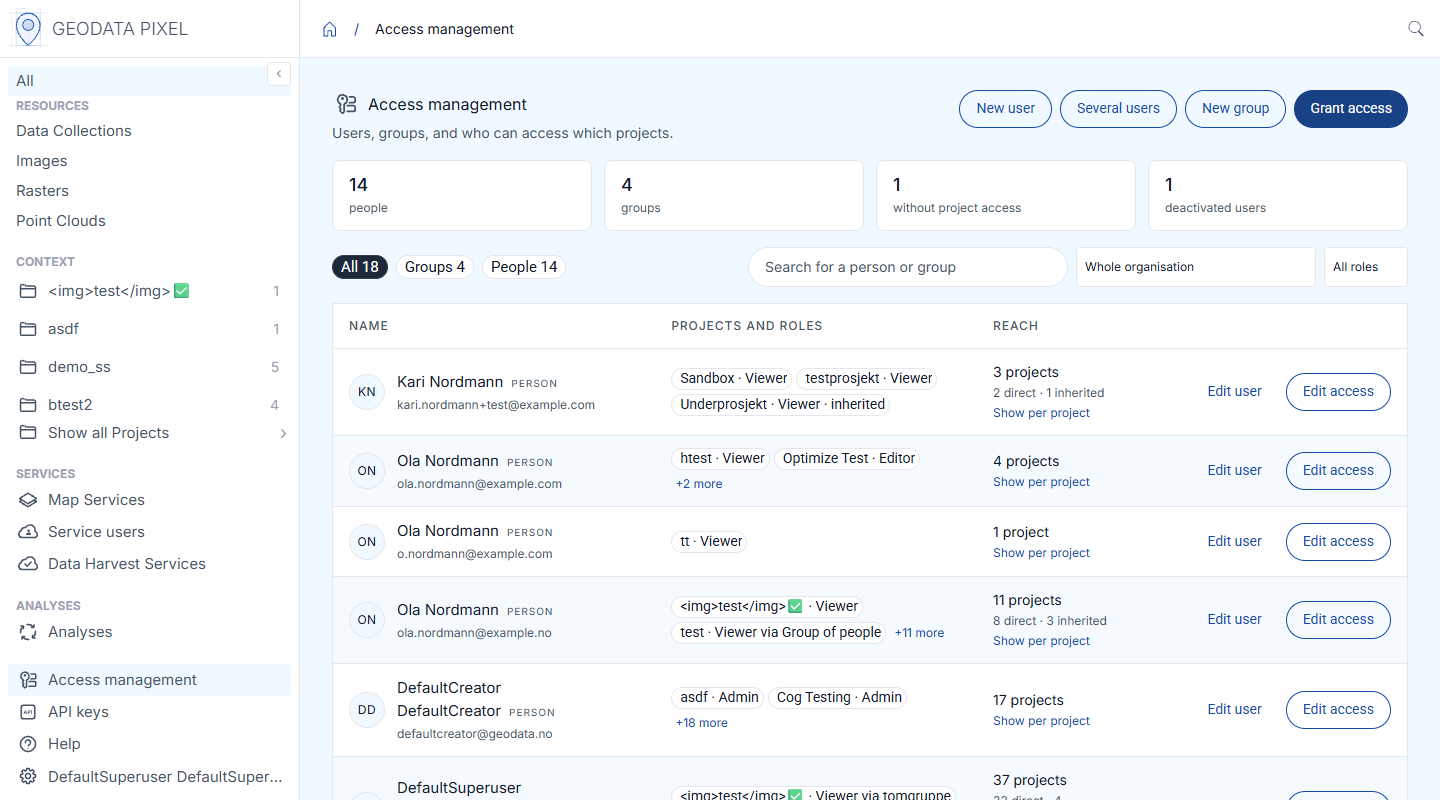
The overview shows everyone in the organization, with the projects and roles they have and how many projects they reach, directly or inherited from a parent project. Use the chips to show Groups or People, search by name, and filter by project and role. Click Show per project to see the access per project.
Choose a project in the project drop-down (under Manage a project) to see and change who has access to that project.
Project roles
| Role | Description |
|---|---|
| Admin | Full access to the project, including managing access for other users |
| Editor | Can create and edit data collections and data within the project |
| Viewer | Read-only access to the project |
Access on a project also applies to its subprojects. A subproject can only get a stronger role than it inherits. You can only give roles you hold on the project yourself.
Add users
- New user — Fill in first name, last name, email, a temporary password and the account type. You can also add the user to groups and projects right away. The user has to choose their own password the first time they sign in.
- Several users — Paste email addresses (one per line, or separated by commas) or upload a CSV file, and give them a shared temporary password. Names are made from the address, for example kari.nordby becomes Kari Nordby.
To change a user, click Edit user. Here you can change the name, account type and password, and deactivate the user.
Groups
Click New group to create a group of users. You become a member and admin of the group yourself. Give a group access to a project, and all its members get that access. Click Edit on a group to manage its members, projects and admins. A group needs at least one admin.
Deleting a group
When a group is deleted, its members lose the access they had through the group. API keys that follow the group lose this access too. This can't be undone.
Grant access
Click Grant access and choose how you want to grant access:
- One group or person, several projects — Choose a group or person, and the role they get in each project.
- Several groups and people, one project — Choose a project, a default role, and the groups and people that should get access.
You can also manage access from a project: open the project, click the three-dot menu and select Access. The dialog shows who has access to the project, with their role and where the access comes from (Direct, Inherited or Via group).
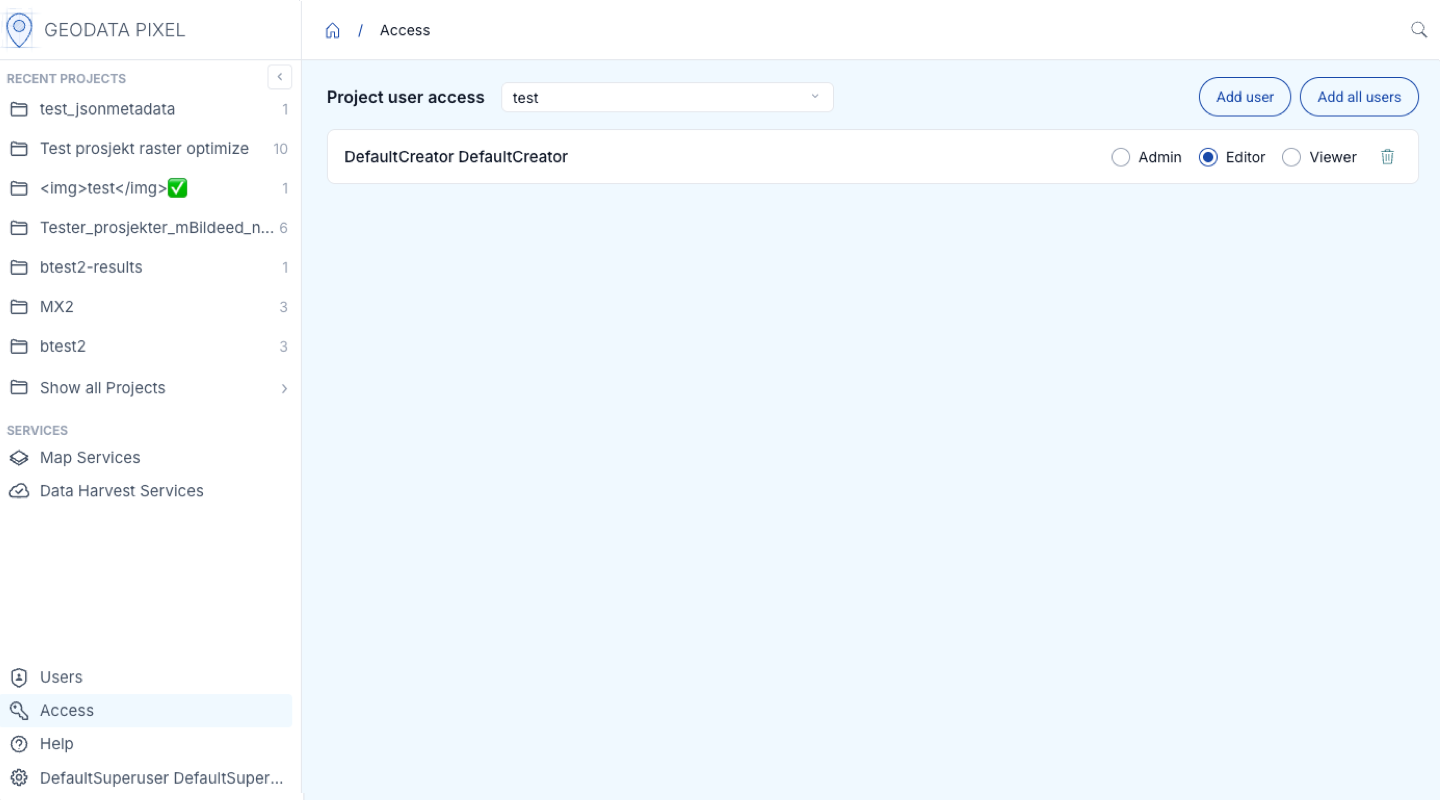
To remove access, click Remove and confirm with Remove access. Only direct access can be removed here. Inherited access is changed in the project where it was given, and access via a group is changed in the group.
API keys
API keys let scripts and integrations, such as the Python client, sign in to Pixel. A key can never do more than the person who created it. Creators and Superusers can create keys. Superusers see the keys of everyone in the organization.
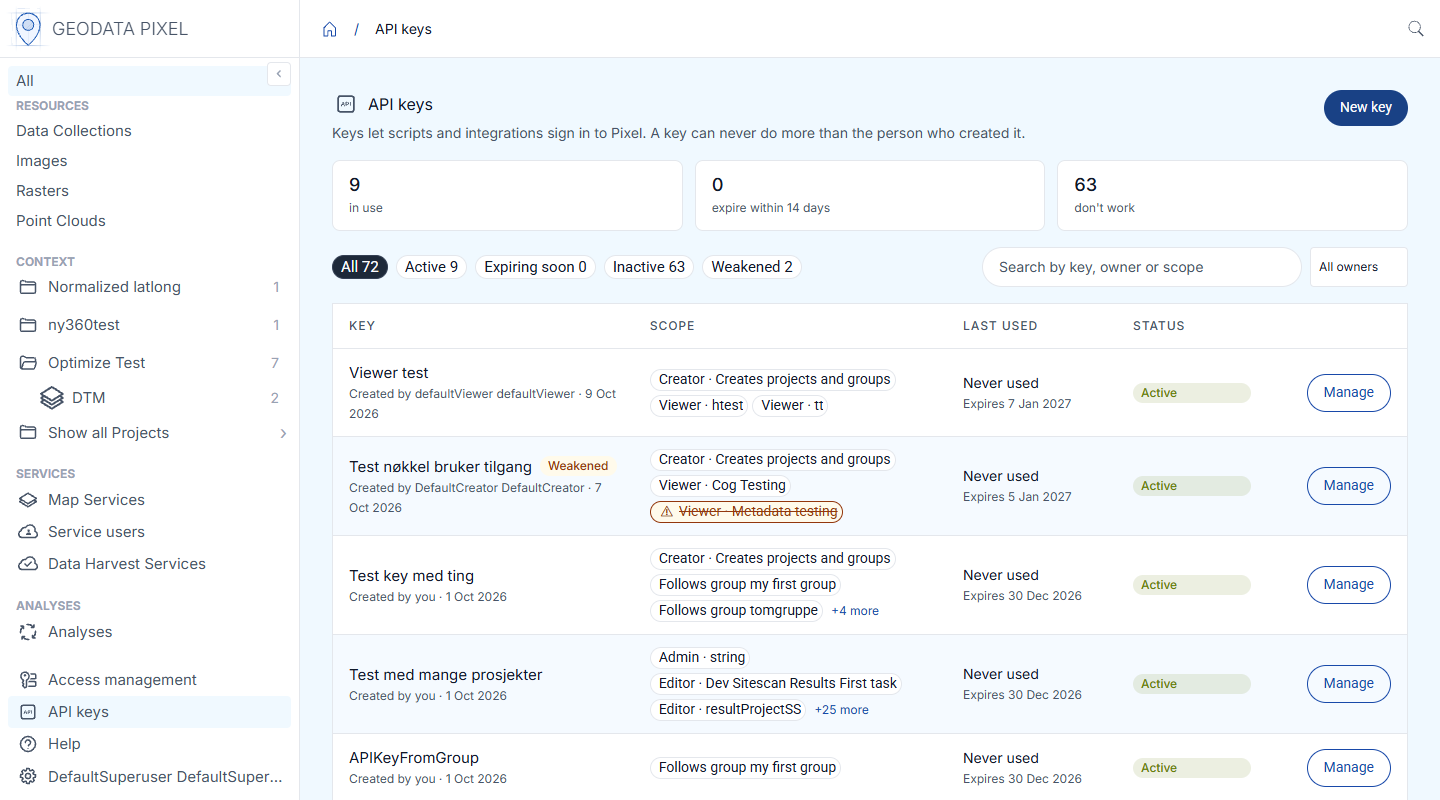
To create a key:
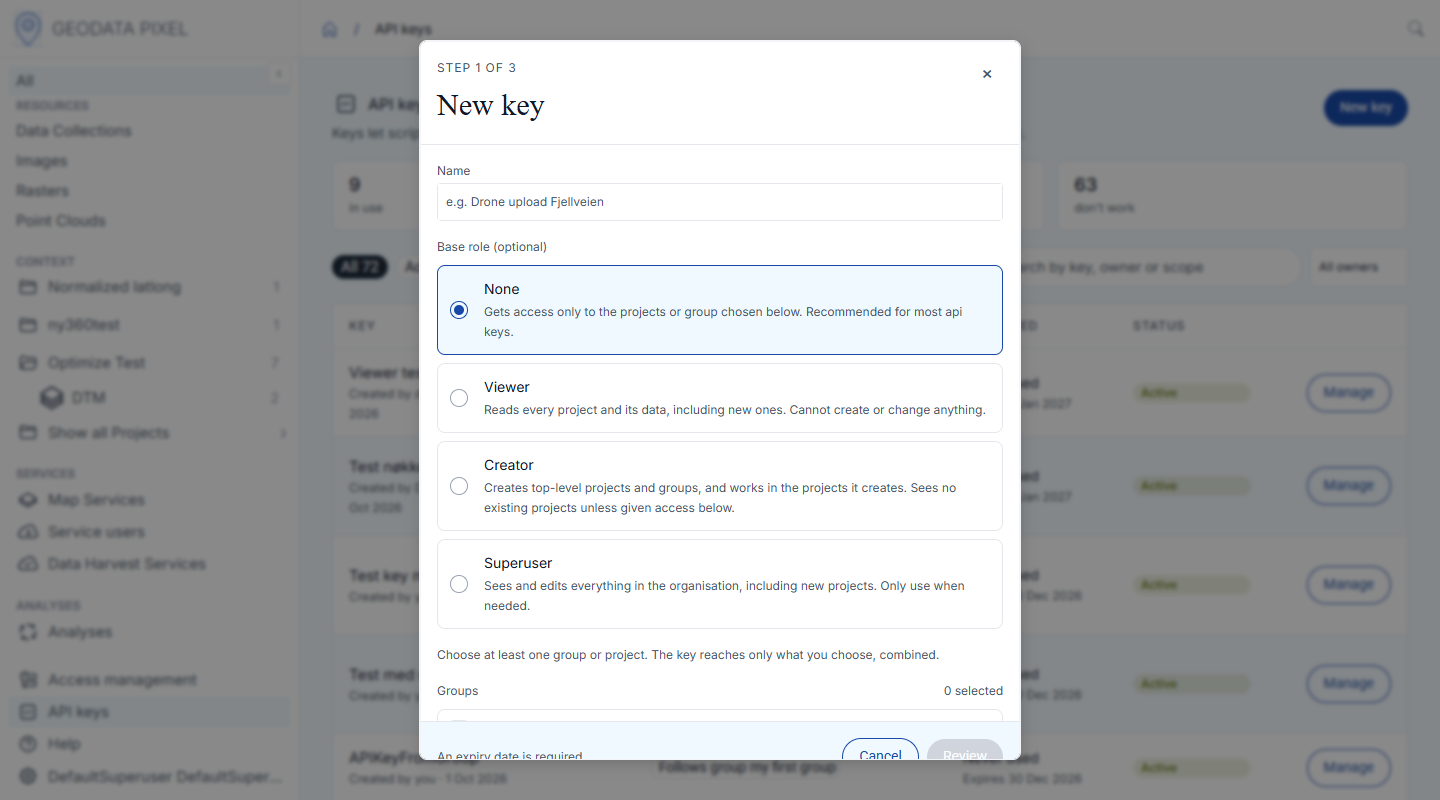
- Click New key.
- Give the key a name, and optionally a Base role (Viewer, Creator or Superuser). None is recommended for most keys: the key then only reaches the groups and projects you choose.
- Choose groups and projects, with a role for each project, and when the key expires (30 days to 1 year).
- Click Review, check the summary and click Create key. The scope cannot be changed afterwards.
- Copy the key and store it safely. It is only shown once.
Click Manage on a key to rename it, Revoke it, or Replace it with a new key with the same scope. Scripts using a revoked key stop working immediately.
A key marked Weakened can do less than it was given, for example because its owner has lost access to a project. A key stops working if its owner is deactivated.
Settings
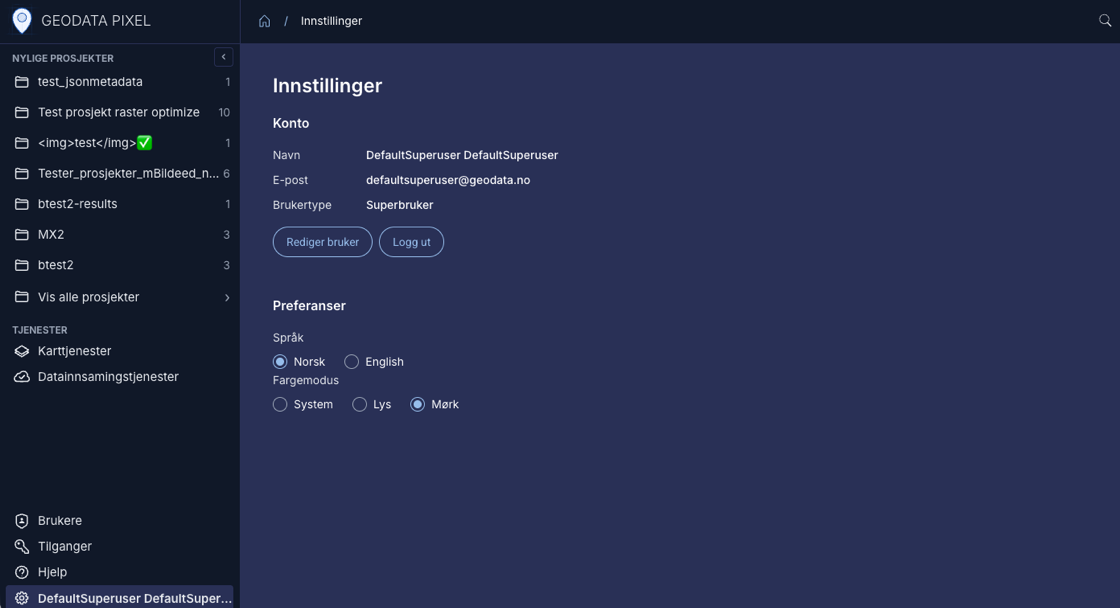
Click your own name at the bottom of the left sidebar to open Settings. Here you can:
- View account information — See your name, email and user type.
- Edit user — Update your account details (Superusers only).
- Preferences:
- Language — Switch between Norwegian and English. The change takes effect immediately.
- Color mode — Choose between System, Light or Dark mode. System follows your device settings.
- Log out — Sign out of the application. You can also log out with the icon next to your name in the sidebar.
Help and news
Click Help in the left sidebar to find the user manual, the API documentation (Swagger) and contact information. Under What's new you can read the latest news about Pixel. New messages open automatically once. Click Don't show again to stop a message from opening.
Data harvesting
Geodata Pixel allows you to configure automatic harvesting of images from your own ArcGIS Feature Services. Open Data Harvest Services in the left sidebar. The page lists the harvesters in projects where you are project admin.
Create a new harvester
Superuser Privileges Required
Only superusers can create harvesters.
Click New harvest service, select the data collection to harvest into and click Next. Then fill in the steps of the form:
- Info — Provide a name and description for the harvester.
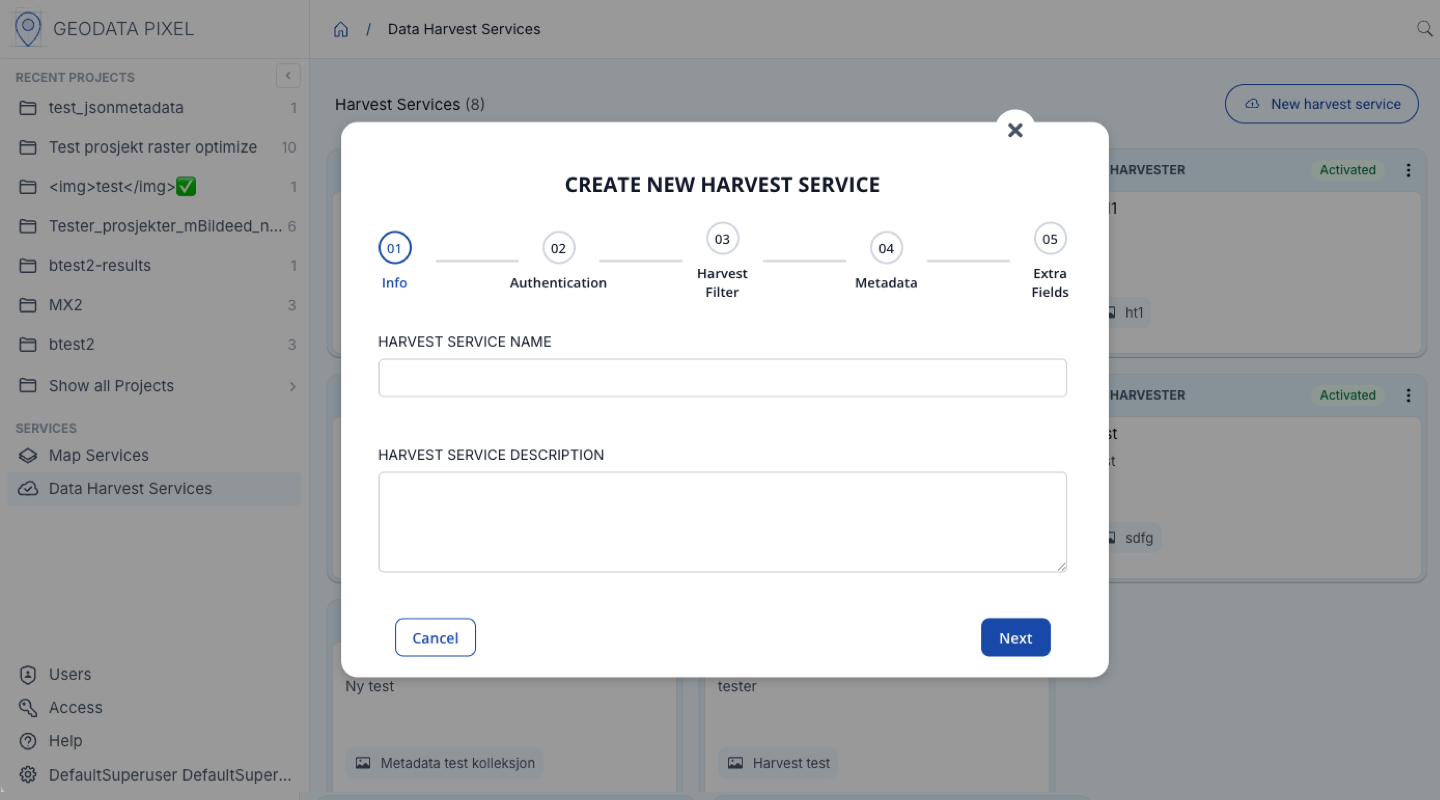
- Authentication — Provide the ArcGIS Feature Service URL and how to sign in: Credentials (username, password and token endpoint URL) or API Key.
- Harvest Filter — Optionally specify an SQL-Where Clause to filter which images to harvest. If you enter a where clause, click Test Where Clause to validate it against the ArcGIS Feature Service before you continue. The test shows how many features match. An empty where clause harvests everything (
1=1). - Metadata — Map fields from the ArcGIS Feature Service to Geodata Pixel metadata fields.
- Extra Fields — Choose a date field on the Feature Service where Pixel stores when each feature was last harvested. You can also add additional metadata fields. Click Create to create the harvester.
Manage harvesters
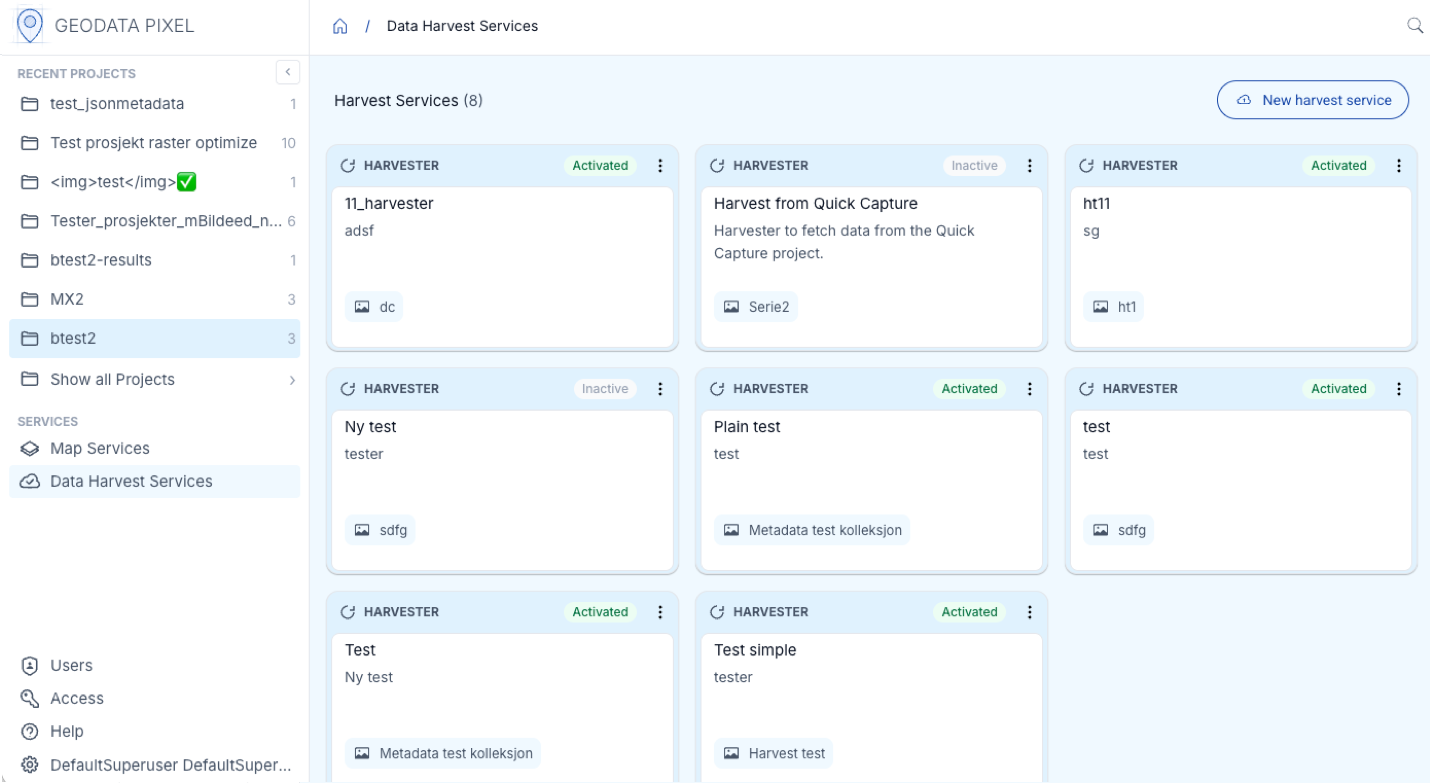
After creating a harvester, it appears as a card on the Data Harvest Services page with its name, description, data collection and status (Activated/Inactive). Click a harvester card, or Show Details in the card's three-dot menu, to open its details page.
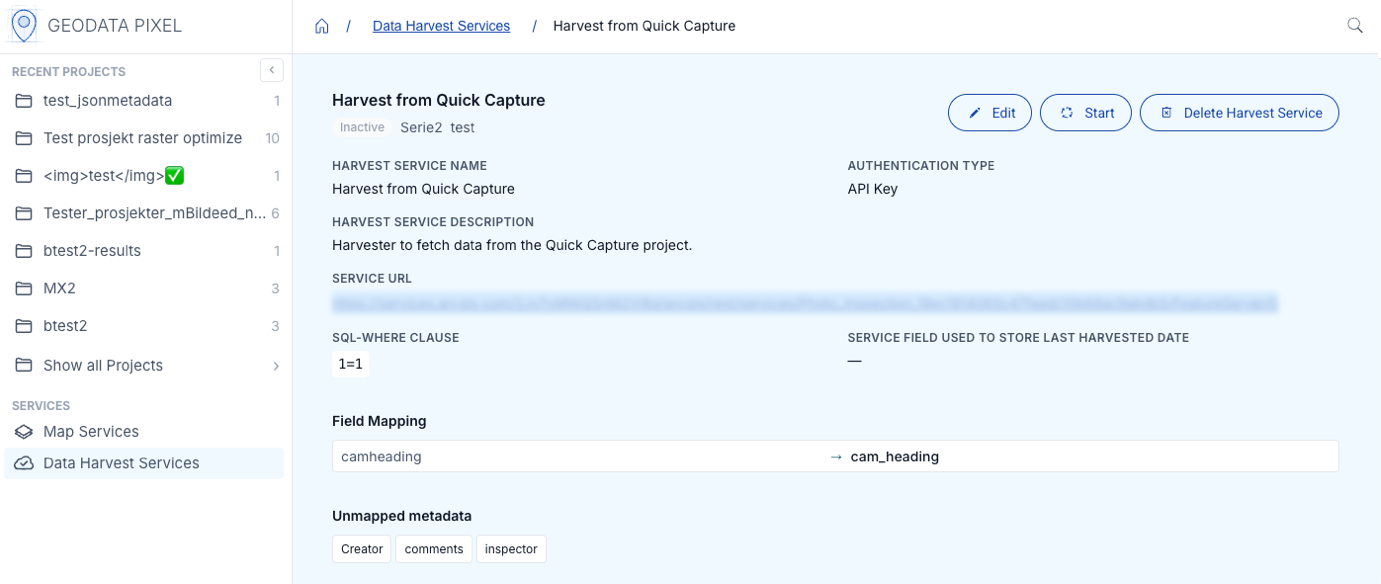
The details page shows the current configuration and lists the harvesting tasks grouped by their status. From here you can Edit the configuration, Start or Stop the harvester, or Delete Harvest Service. In edit mode you can change the name, description, where clause, the field for the last harvested date and the metadata mapping.
Pointing to another service
The ArcGIS Feature Service URL cannot be changed after creation. To change the service, create a new harvester.
Deleting the service
Pixel uses a task log to track harvested features. The task log is deleted with the harvester, so deleting and recreating a harvester will re-harvest all features.
ArcGIS Services
All data uploaded to Geodata Pixel can be published through ArcGIS services (Feature and Image). This is accessible from Map Services in the left sidebar.
Privileges required
Creating, editing, starting and stopping services requires permission to manage map services, which superusers have.
Overview of published services
The Map Services page shows an overview of existing Feature Services and Image Services. Switch between service types using the tabs.
Use the Filter by text field to search for services by name, and the Image type drop-down to filter on data collection type. Use Dashboard, List and Map in the top bar to show the services as cards, in a list or on a map.
Each service card has a three-dot menu with Show details, Edit map service, Pin map service and Delete map service. Pinned services appear at the top of the list. You can also pin a service by dragging its card into the pinned area.
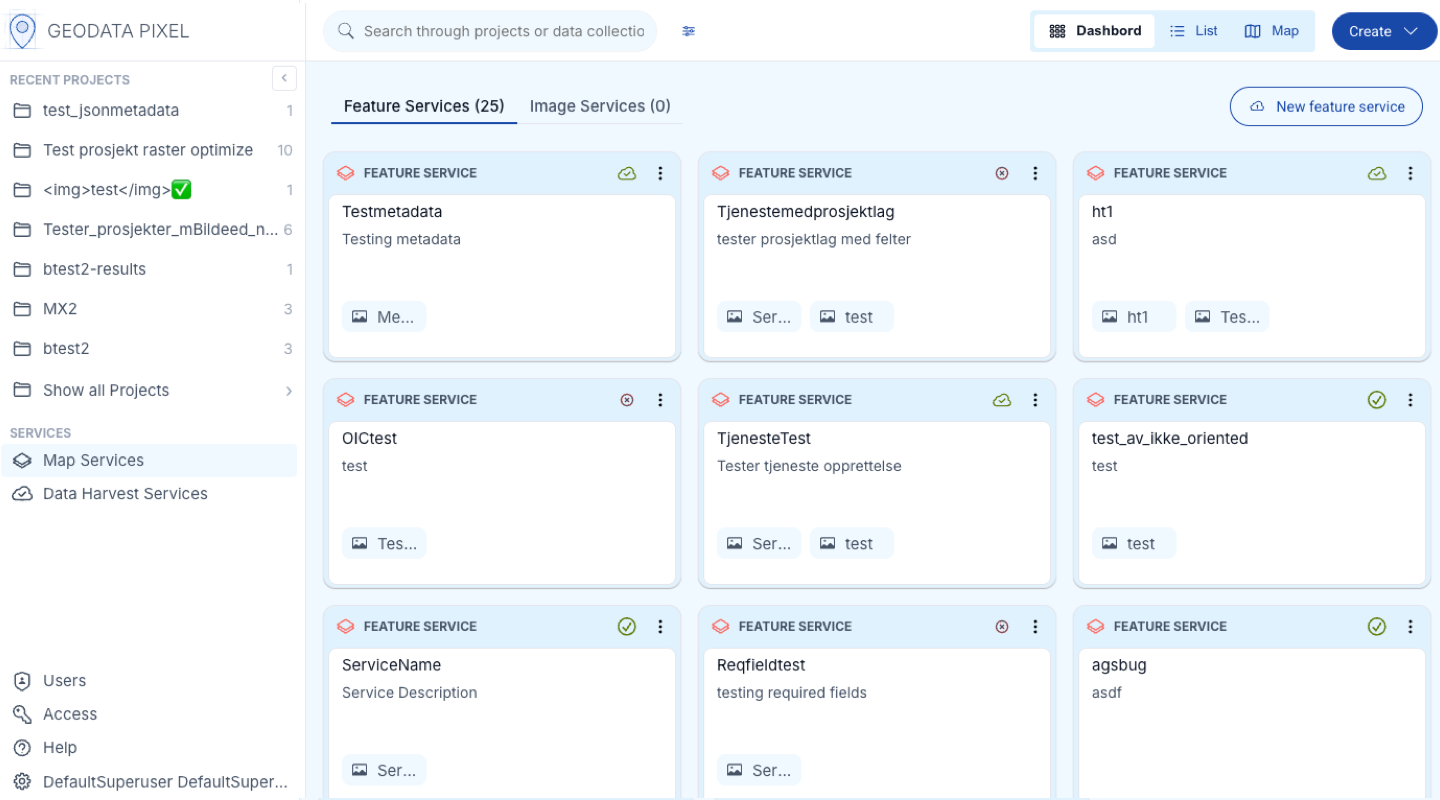
Each card shows the service name, description, the data collections included and an icon for the status. The status of a service is one of:
- new — Created but not yet started.
- running — Currently running and available for use.
- stopped — Stopped and not currently available.
- failed — Encountered an error. The details page shows the reason from the server.
- out_of_sync — Updated but not refreshed to reflect changes.
- updating — Currently being updated.
Your organization can run a limited number of image services at the same time. On the Image Services tab, a counter shows how many are running out of the maximum, for example 2 of 5 running. Services that are starting up, refreshing or out of sync count too. When the limit is reached, stop a service before you start another one.
Service URLs and access
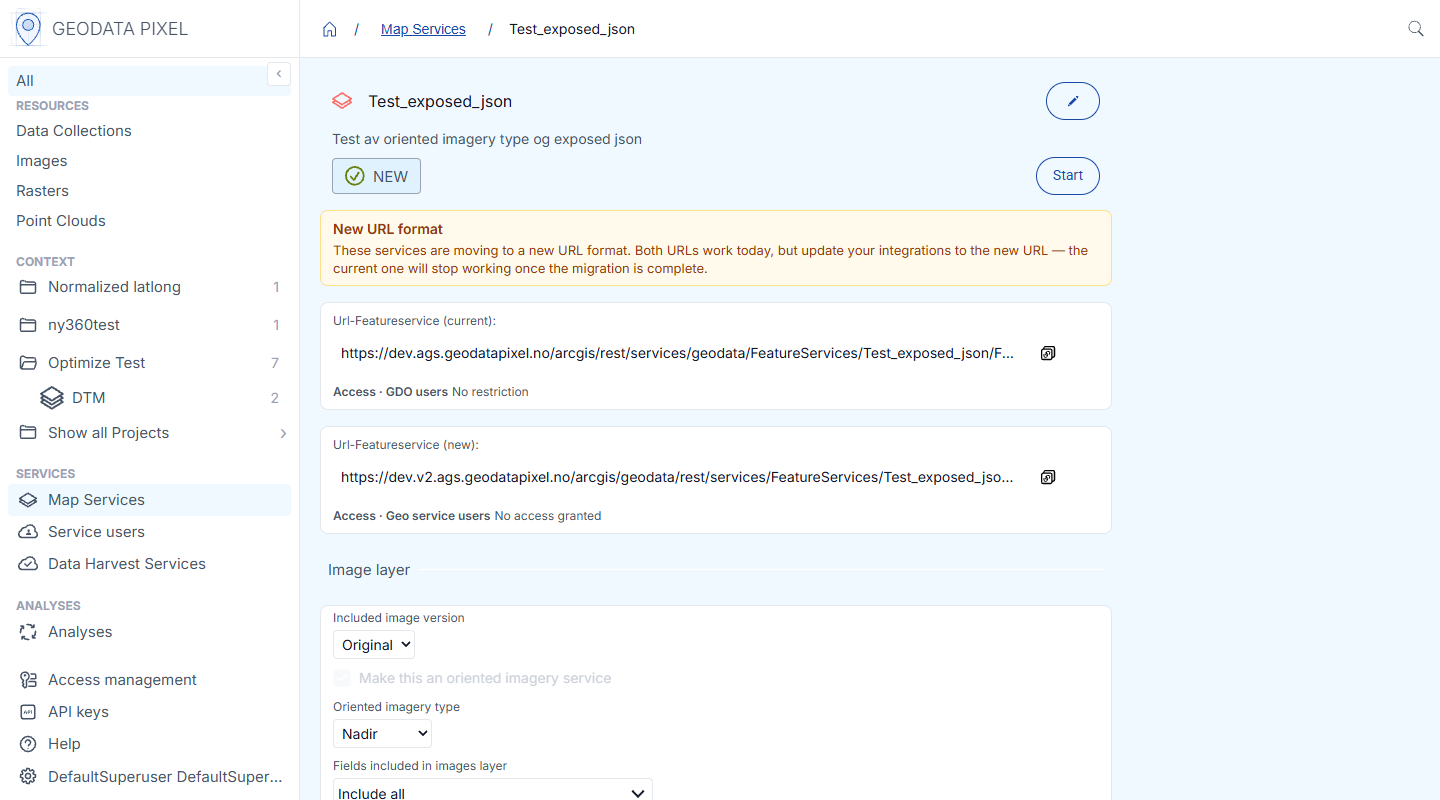
Pixel is moving its map services to a new server and URL format. Each service therefore shows two URLs on its details page:
- (current) — The URL on the current server. Access is controlled by GDO users.
- (new) — The URL on the new server (ArcGIS Server v2). Access is controlled by service users, or the service can be made public.
Both URLs work today. Update your integrations to the new URL, because the current URL will stop working once the migration is complete.
On the new URL, a service is either public or limited to the service users that have been given access. To make a service public, turn on Public service – anyone can use the new URL without signing in when you create or edit it. Service users that already have access keep it, and it applies again if the service is made private.
Signing in to a secured service
New URL: Sign in as a service user, or generate a token with the service user's username and password from the Generate token link on the Service users page.
Current URL: If the service is configured with GDO users, you can generate tokens through Geodata Online token service.
Use the token via the token query parameter, Authorization or X-Esri-Authorization header.
Examples with cURL:
// With X-Esri-Authorization header
curl -X GET "<SERVICE_URL>" -H "X-Esri-Authorization: Bearer <YOUR_ACCESS_TOKEN>"
// With query parameter
curl -X GET "<SERVICE_URL>?token=<YOUR_ACCESS_TOKEN>"
// With Authorization header
curl -X GET "<SERVICE_URL>" -H "Authorization: Bearer <YOUR_ACCESS_TOKEN>"
Service users
Service users are usernames and passwords that ArcGIS clients use to sign in to the map services on the new URL. A service user can only reach the services it has been given access to, and can never sign in to Pixel. Open Service users under Services in the left sidebar. The page is available to superusers.
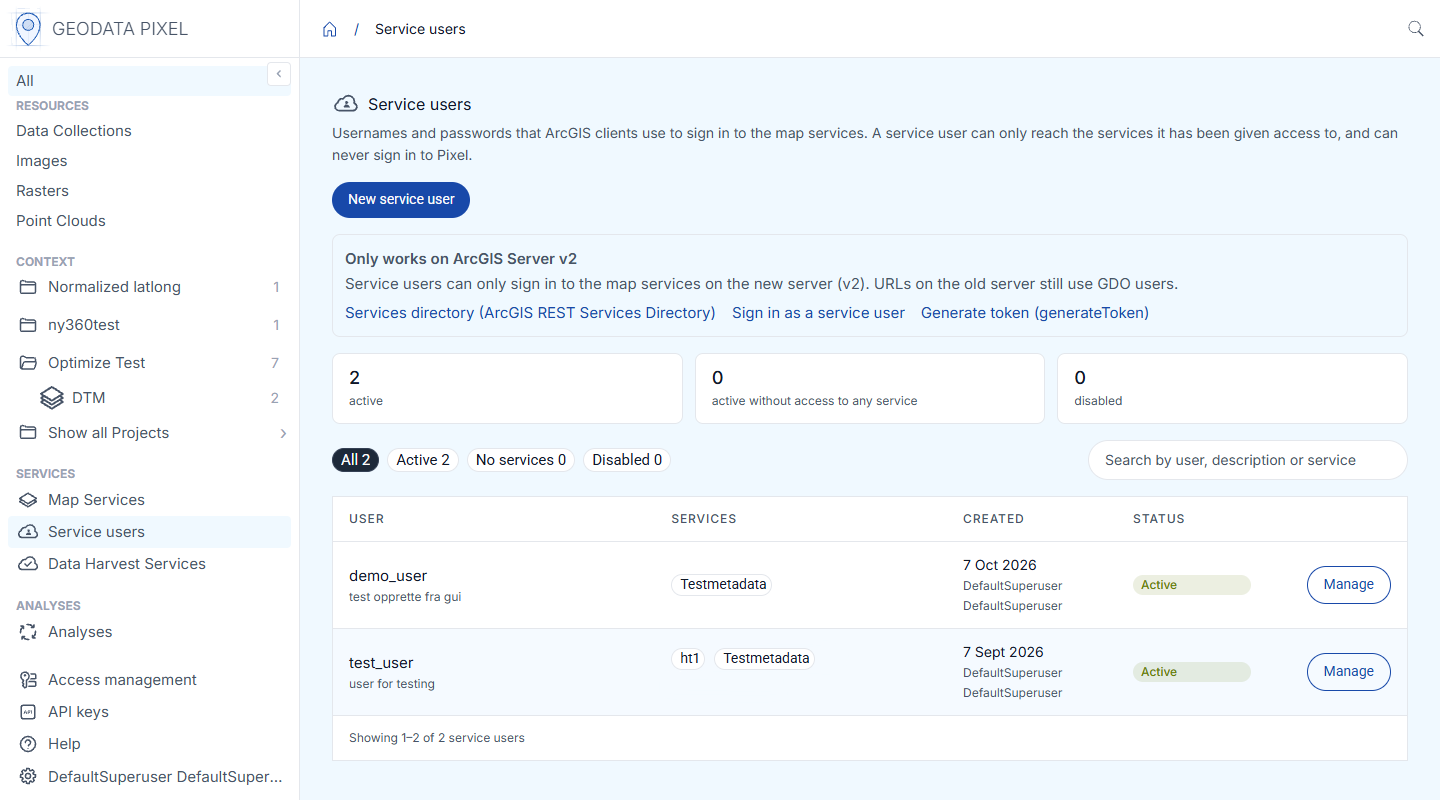
The page has links to the services directory on the new server, a page for signing in as a service user, and the token service (Generate token).
To create a service user:
- Click New service user.
- Enter a Username (3–64 characters: lowercase letters, digits and
._-). The username cannot be changed later. - Add a description (optional), and choose to generate a strong password (recommended) or choose your own (at least 12 characters).
- Click Create service user. Copy the password and store it safely. It is only shown once.
- A new service user has access to no services. Use Give access to select the services it should reach.
Click Manage on a service user to give or remove access to services, Disable or Enable the user, set a New password or Delete the user. Changes reach the map services within a few minutes. You can also give service users access from each service under Map Services.
Feature Services
Feature services expose images as point features through ArcGIS Feature Services. Each image is represented as a point with associated metadata.
Create new feature service
Click New feature service (or Create → New map service in the top bar) and fill in:
- Service name — Name of the service. Allowed characters are a-z, A-Z, 0-9 and _.
- Service description — Description of the service contents.
- Data collections — Select which data collections to include.
- Expose JSON metadata fields — Select JSON metadata fields to expose as fields in the service.
- Included image version — Choose between original or blurred images.
- Oriented imagery — Make the service an oriented imagery service, and choose the oriented imagery type (Horizontal, Oblique, Nadir, 360° or Inspection).
- Fields — Select which fields to include in the images layer. Use "Include all" or select a subset. Note the required fields listed on the page.
- Also add images as attachments — Required for oriented imagery services.
- Access — Make the service public on the new URL, and choose the GDO users (current URL) and service users (new URL) that have access. See Service URLs and access.
- Include project layers in service — Optionally expose parent projects as a layer in the service, with the fields to include.
Click Save to create the service.
Required fields
There are different required fields depending on whether oriented imagery is enabled. Attempting to publish with missing required fields will fail.
Service administration
Click a service card (or Show details) to open the details page. You can:
- Start a new, stopped or failed service, or Stop a running service.
- Refresh service to update the data the service exposes.
- Copy the service URLs, and see who has access on each URL.
- View the included data collections and fields.
- Click the edit (pencil) icon to change the configuration.
Editing services
In edit mode, you can change:
- Service name and description
- Data collections included and exposed JSON metadata fields
- Image version (original or blurred)
- Oriented imagery and attachments
- Fields included in each layer
- Project layer inclusion
- Public access, GDO users and service users
A new, stopped or failed service can be deleted with Delete map service in edit mode.
Image Services
Image services expose raster data (RGB, DTM and DSM) through ArcGIS Image Services.
Image service requires image_service plugin
The image service plugin and the optimized_raster plugin are required. See plugins in Pixel for more information.
Create new image service
Click New image service on the Image Services tab. Options for image services:
- Service name — Name of the service.
- Service description — Description of the service contents.
- Data collections and Data type — Select data collections to include. RGB collections are exposed as RGB imagery, DTM/DSM as Elevation imagery. Only collections of the same type can be combined.
- Expose JSON metadata fields — Select JSON metadata fields to expose in the service.
- Default service SRID — Select a spatial reference close to your area of interest for best performance.
- Enable WMS Service — Enable WMS capabilities with configurable title, abstract, keywords and supported SRIDs.
- Access — Public access, GDO users and service users, as for feature services.
Optimize rasters
Image services require all rasters to be optimized. See Optimize rasters.
Image service administration
The service details page shows configuration and status. Available actions:
- Edit (pencil icon) — Change service configuration.
- Stop — Stop a running service.
- Refresh service — Update the data the service exposes.
- Start — Start a new, stopped or failed service.
- Delete map service — In edit mode, delete a new, stopped or failed service. You are asked to confirm first, because a deleted service cannot be restored.
Data in the service
Service data is static at creation or last refresh. If new data is added to included data collections, the service must be refreshed. Automatic refresh occurs every 24 hours.
If WMS is enabled, the page also shows the WMS URL of the service (Url-WMS service), with a button to copy it. Use this URL in WMS clients such as QGIS.
If one or more rasters in the service have no capture date, the page shows a warning with the number of rasters. As long as at least one raster is missing it, the capture date is blank for every raster in the service. Add the missing capture dates in the raster viewer and refresh the service.
If your organization can adjust service sizing, the page also shows the number of replicas and the server size, and you can change them in edit mode. Otherwise, contact Geodata to adjust scaling.
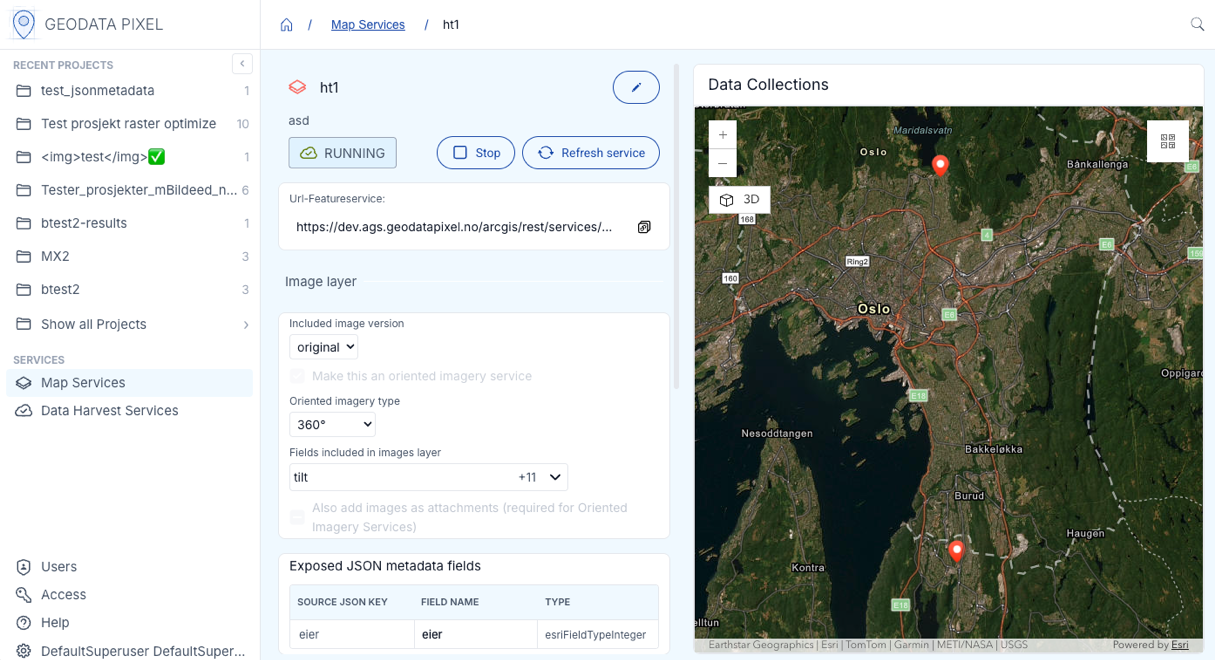
Image Service best practices
Image Service Types
Pixel automatically creates the appropriate service type:
- RGB data collections are published as a processed image service.
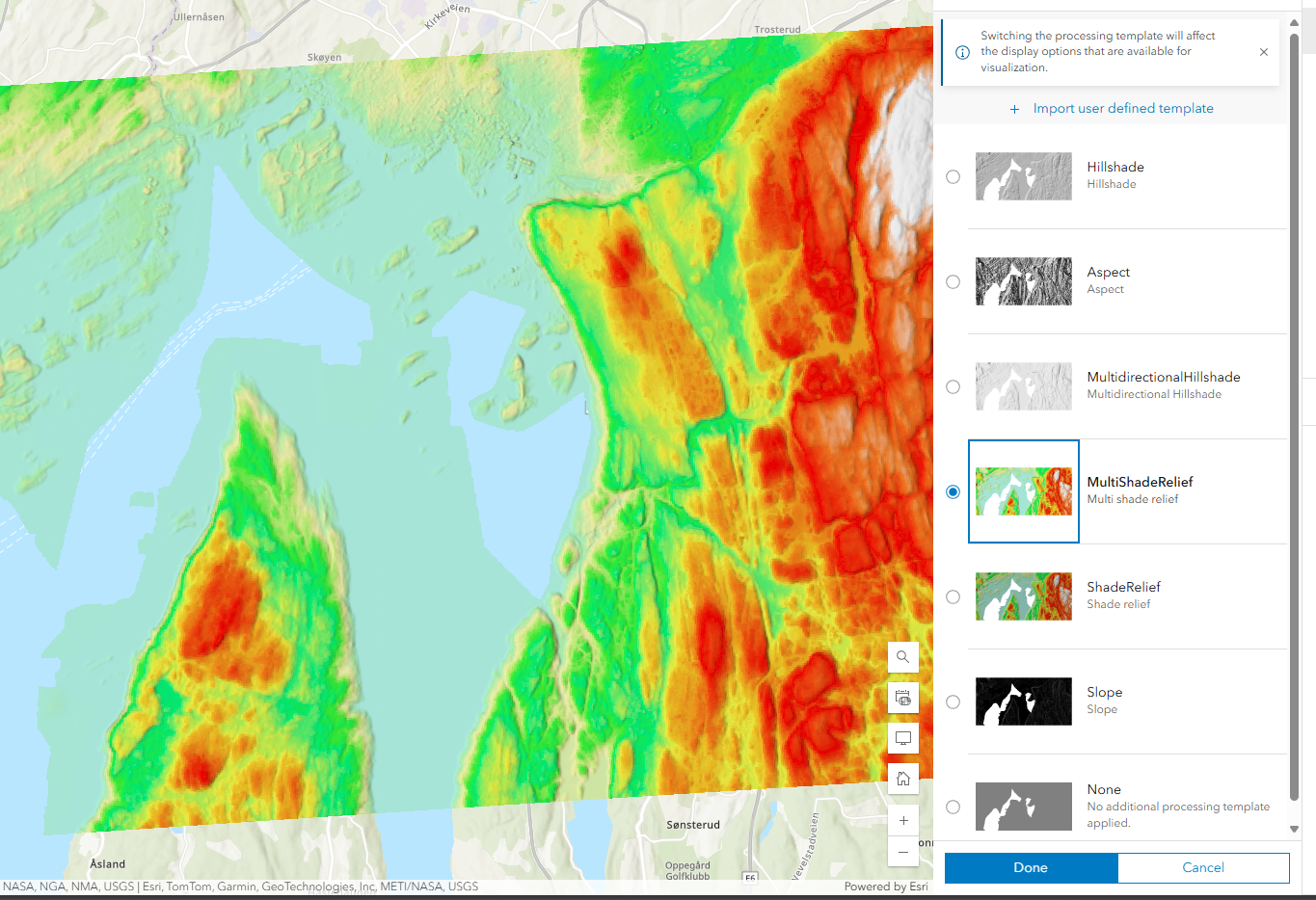
- DTM/DSM data collections are published as elevation services with raster functions: Hillshade, Slope, Aspect, Multidirectional Hillshade, Multi Shade Relief, Shade Relief.
Collect similar data into the same service
Group similar data collections into the same service. For example, if collecting RGB imagery from multiple drone flights, create separate data collections per flight but group them into a single image service. The service supports filtering by data collection name, project name and tags.
Supported clients
Pixel image services support ArcGIS Online, ArcGIS Enterprise, web maps and ArcGIS JavaScript API. In ArcGIS Pro, add the service via Add Data > Data from Path and enter the service URL.
If WMS is enabled, the service can be used in any WMS-compatible client, including QGIS.
Filtering data in the service
Filter data based on data collection names, project names and tags when adding the service to a client. For WMS, use the QUERY or IMAGES parameter. See Filtering images in WMS requests.
Integration with Esri products
When you create services in Geodata Pixel, these are ArcGIS Feature and Image services. These services are primarily supported by Esri products. Whether or not images are supported depends on the specific solutions that you use.
The most common way to make the services available is through your own Portal. This applies to both ArcGIS Online and ArcGIS Enterprise.
| Resource | URL |
|---|---|
| Using services in ArcGIS Enterprise | Connect to secure services - Portal for ArcGIS | Documentation for ArcGIS Enterprise |
| Using services in web maps in ArcGIS Online | Add layers from a URL - ArcGIS Online Help | Documentation |
| Using services in ArcGIS Pro | Add a web feature layer for editing - ArcGIS Pro | Documentation |
Format requirements
Use of metadata in the solution (Exif information)
Geodata Pixel uses metadata from the images that are uploaded. Therefore, it is important that the images hold this metadata.
Challenges with metadata
There is no standard for what metadata should look like, and different camera manufacturers use different formats. This can lead to challenges with metadata from your camera. The application supports most known variants, but some formats may lack support.
What you can do
If you experience problems with metadata from your camera, send Geodata a sample image. Geodata will then add support for that variant in an updated version of the application.
API
Swagger documentation for the API can be opened from Help → API documentation (Swagger), or found here: https://prod.api.geodatapixel.no/{customer}/docs where {customer} needs to be replaced with your own tenant name. This is the same name that you find in the URL when accessing the application.